CapCut vs InShot: Which Is Better for Reels and TikTok in 2026?

If you edit videos on your phone, you have almost certainly debated CapCut vs InShot. They are the two most-downloaded mobile video editors in the world, and on the surface they promise the same thing: quick, polished videos for TikTok, Reels, and Shorts. But under the hood they take very different approaches — CapCut leans into templates, trends, and AI, while InShot keeps things simple, fast, and familiar.
This comparison breaks down features, watermark policy, pricing, and ease of use so you can decide which app deserves a spot on your home screen. Want CapCut’s premium features unlocked? Visit CapCut Mod APK.
Table of Contents
Quick Verdict
Pick CapCut if you want the most features for free — viral templates, auto-captions, background remover, and effects that keep up with every trend. Pick InShot if you want the simplest possible editor: trim, add music and text, and export in seconds with zero learning curve. For most creators in 2026, CapCut does more — but InShot’s simplicity is exactly why millions stay loyal to it.
CapCut vs InShot: Side-by-Side Comparison
| Feature | CapCut | InShot |
|---|---|---|
| Price | Free tier; Pro subscription unlocks premium effects & templates | Free with ads; Pro subscription removes watermark & ads |
| Watermark | No watermark on basic free exports | Watermark on free exports (removable per-video or via Pro) |
| Templates | Huge library of viral, ready-made templates | No template library; manual editing only |
| Auto-captions & AI | Excellent — auto-captions, AI background remover, text-to-speech | Basic text tools; no AI captioning |
| Ease of use | Beginner-friendly with guided tools | Extremely simple — the easiest editor here |
| Music library | Built-in trending sounds & effects | Built-in music + easy import from your library |
| Platforms | Android, iOS, PC, web | Android & iOS (mobile-first) |
| Best for | Trendy, feature-rich social content | Quick trims, photo slideshows, no-fuss edits |
Key Differences Explained
1. Features and Creative Ceiling
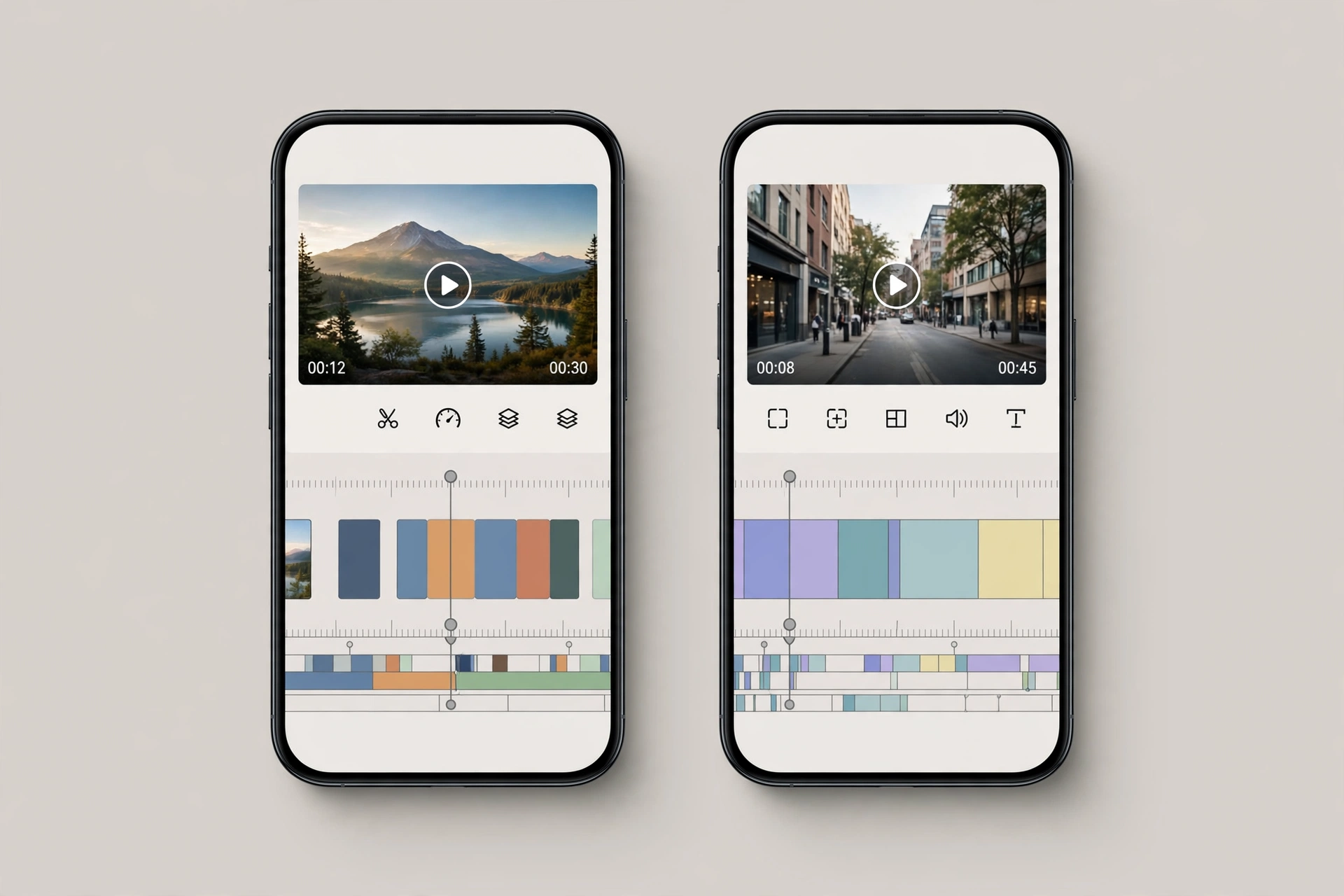
The CapCut vs InShot gap is widest here. CapCut ships with keyframing, chroma key, motion tracking, auto-captions, and a constant stream of trending effects — it is closer to a desktop editor squeezed into your phone. InShot deliberately stays lean: trim, split, speed, filters, text, stickers, and music. That covers 90% of casual edits, but you will hit its ceiling fast if your ambitions grow.
2. Templates vs Simplicity
CapCut’s template feed is its superpower — find a viral format, drop in your clips, and post. InShot has nothing like it, which is either a weakness or a virtue depending on your style. If you have ever felt overwhelmed by options, InShot’s stripped-down timeline is genuinely relaxing: open the app, make your cut, export, done.
3. Watermark and Pricing
Here is the honest breakdown. CapCut’s free tier covers core editing with watermark-free basic exports, though premium effects, templates, and AI features sit behind a CapCut Pro subscription. InShot’s free version adds a small watermark to exports (you can remove it on individual videos or go Pro) and shows ads. Both are free to start — CapCut gives you more before asking for money, while InShot’s paid tier is mainly about removing the watermark and ads.
4. Music and Audio
Both handle the basics well. CapCut’s edge is its library of trending sounds synced to the template ecosystem — great when you are chasing a trend. InShot makes it dead simple to pull any song from your own library and fade it under your video. For talking-head and vlog content, either works; for trend-driven content, CapCut’s sound integration wins.

Which Should You Choose?
Here is the simplest way to settle the CapCut vs InShot debate:
Choose CapCut if: you want templates, auto-captions, and AI tools; you follow TikTok/Reels trends; you edit on PC as well as phone; or you want the most features without paying. Compare it with other mobile editors in our CapCut vs VN and CapCut vs YouCut guides.
Choose InShot if: you want the absolute simplest editor; you mostly trim clips, add music, and post; you dislike cluttered interfaces; or you edit photo slideshows and quick family videos.
Still deciding? Browse all our detailed editor comparisons to find the workflow that fits you.
Frequently Asked Questions
Is InShot better than CapCut?
For simplicity, yes — InShot is easier to learn. For features, templates, and AI tools, CapCut is clearly ahead. Most creators who outgrow InShot move to CapCut.
Does InShot have a watermark?
Yes, the free version of InShot adds a small watermark to exported videos. You can remove it on a per-video basis or with an InShot Pro subscription.
Is CapCut really free?
CapCut’s free tier covers core editing with watermark-free basic exports. Premium effects, templates, and AI features require a CapCut Pro subscription.
Which app is better for Instagram Reels?
CapCut — its templates, trending sounds, and auto-captions are built for Reels-style content. InShot works fine for simple Reels but cannot match CapCut’s trend toolkit.
Can I use both apps?
Absolutely. Many creators rough-cut in InShot for speed and finish in CapCut for captions and effects — or vice versa.
Final Verdict
In the CapCut vs InShot matchup, CapCut is the more capable editor and the better pick for most creators in 2026 — more features, templates, and AI, all free to start. But InShot earns its loyal following honestly: when you want to trim a clip, add a song, and post in two minutes flat, nothing beats its simplicity. Download both, keep the one that matches how you actually edit.