How to Use CapCut for Education: Guide for Teachers (2026)

Most people know CapCut as a TikTok video editor. But in classrooms around the world, teachers are quietly using it for something else — making lessons students actually enjoy watching. From quick explainer videos to full lesson recordings, CapCut for education is free, easy to learn, and powerful enough for real teaching work.
In this guide, you will learn how to use CapCut for education step by step — the best features for teachers, how students can use it for projects, and practical tips for making classroom videos that hold attention.
Table of Contents
Why CapCut Works So Well for Education
Teachers do not have hours to learn complicated software. That is CapCut’s biggest advantage: it runs on phones, tablets, and computers, the basics take minutes to learn, and the free version covers almost everything a teacher needs. You can record a lesson, add captions, clean up the audio, and share it with students — all in one app, without paying for expensive editing tools.
How Teachers Use CapCut
If you are wondering what CapCut for teachers looks like in a real classroom, here are the three most common ways educators use it every day.
1. Create Lesson Videos With AI Tools
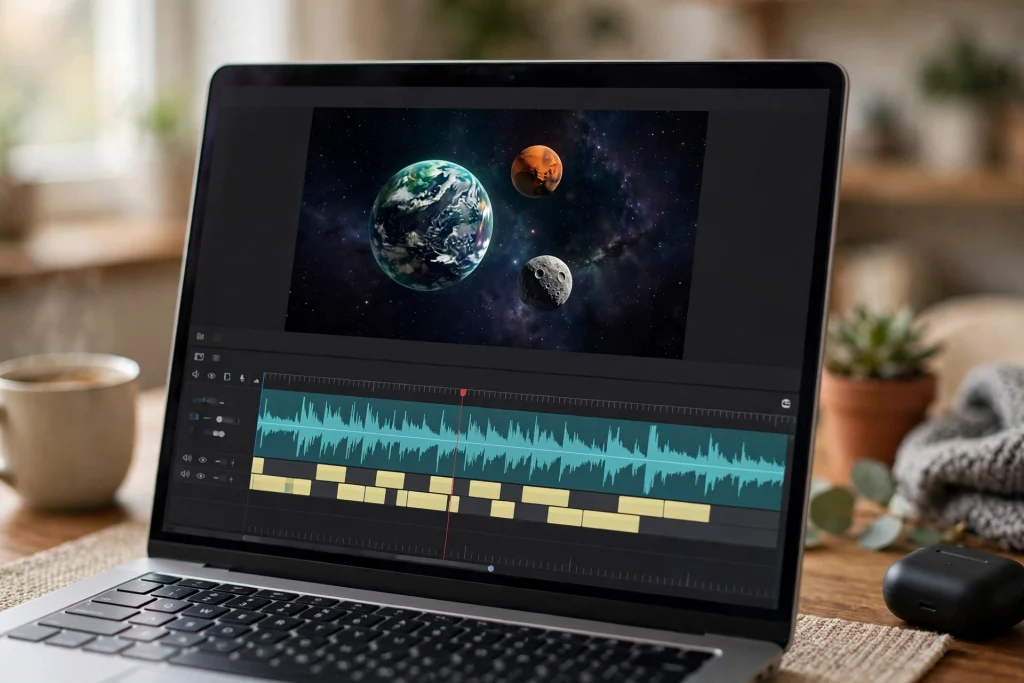
The fastest way to make a lesson video is to let CapCut’s AI do the heavy lifting. Write your lesson points, use the script generator to turn them into a clear narration script, then convert it to voiceover with text-to-speech — no microphone needed. Auto captions add subtitles automatically, which helps students follow along and makes videos accessible. Our CapCut text-to-speech guide walks through the voiceover options in detail.
2. Make Boring Topics Fun
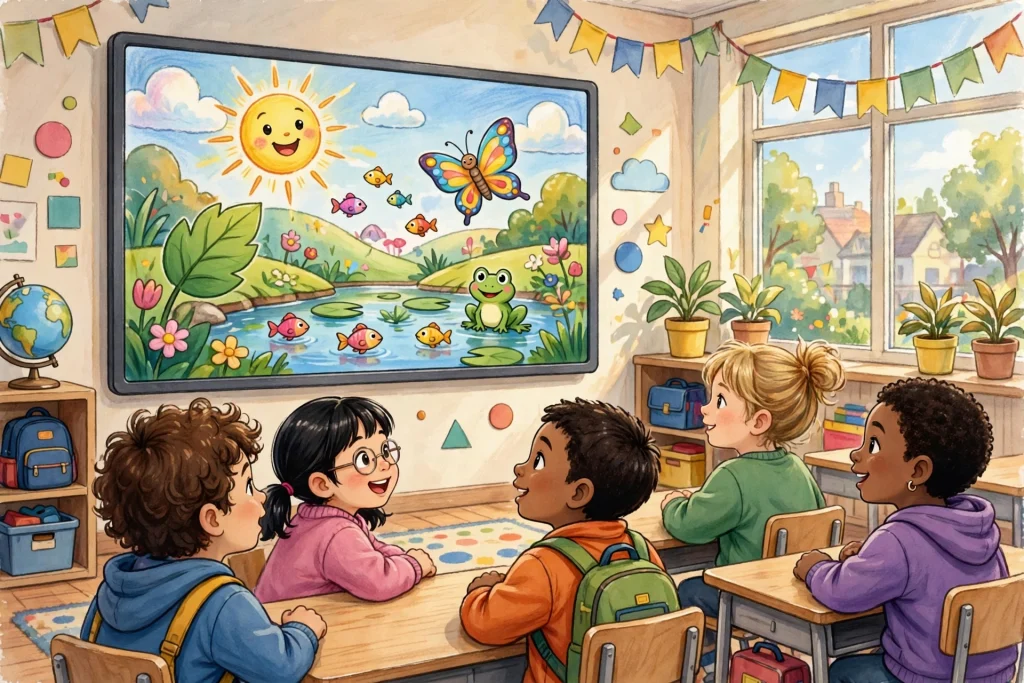
Young students switch off fast. CapCut’s playful tools — voice changer effects, stickers, animations, and background music — turn a dry topic into something memorable. Imagine explaining the solar system with a cartoon voiceover, or history narrated like a movie trailer. These small touches keep attention without adding work, because the effects apply in one tap.
3. Flip the Classroom
Many teachers now record short lesson videos for homework and use class time for discussion instead of lectures. CapCut makes this practical: record a 5-minute explanation, trim the mistakes, add captions, and share the link. Students can rewatch difficult parts as many times as they need — something a live lecture never allows.
CapCut for Students: Better Than Slides
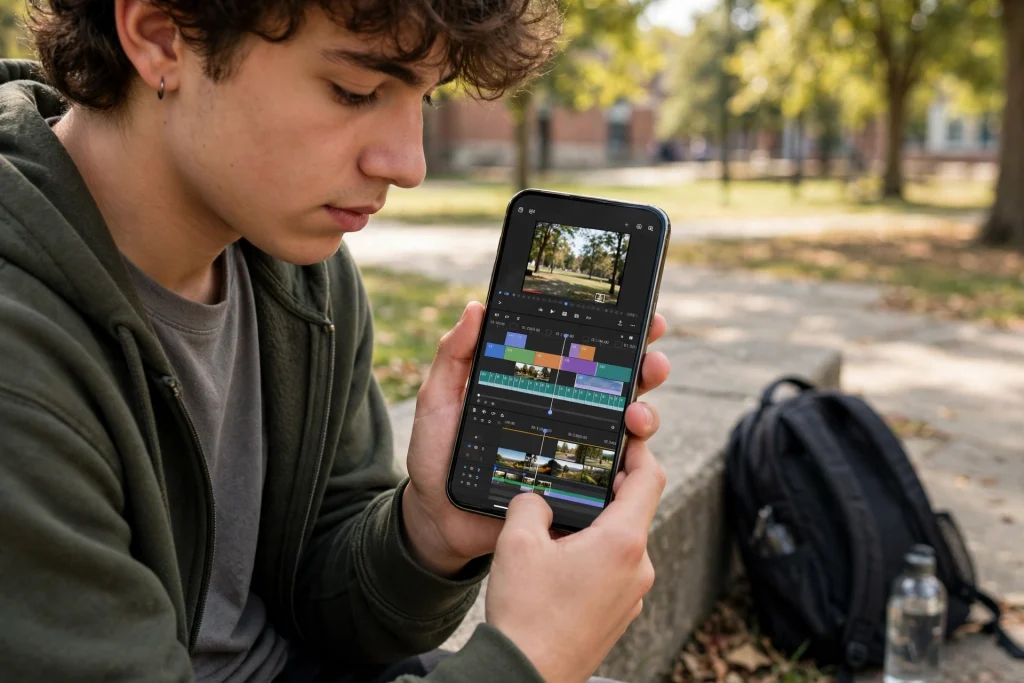
It is not just teachers. Students can use CapCut for video projects, presentations, and assignments — a science experiment documentary, a book report as a short film, a language practice video. Video projects build communication skills that slides never teach, and students already know the app from social media, so there is almost no learning curve.
Best CapCut Features for Educators
CapCut for education does not require mastering every feature — these are the ones teachers actually reach for:
- Text-to-speech: natural AI voiceovers without recording your own voice.
- Auto captions: one-tap subtitles that make lessons accessible and easier to follow.
- Templates: ready-made layouts for quick, polished videos — see our guide to using CapCut templates.
- Voice changer: fun narration styles that keep young learners engaged.
- Trim and split: cut mistakes and pauses out of recordings in seconds.
- Background music library: royalty-free tracks that make videos feel professional.
Practical Tips for Classroom Videos
A few habits separate watchable lesson videos from ones students skip. Keep videos short — five focused minutes beat twenty rambling ones. Always add captions; many students watch on mute. Speak conversationally instead of reading slides word for word. And export in 1080p: it looks sharp on classroom screens without creating huge files. You can download the app free from our CapCut download page to get started. For schools watching their budget, that zero-cost setup is a big reason CapCut for education keeps spreading in classrooms.
Conclusion
CapCut for education proves that a free phone app can be a serious teaching tool. Whether you are recording your first lesson video or helping students create video projects, start small — one short captioned video is enough to see the difference. You do not need expensive software or a production studio; the phone in your pocket is enough. As you get comfortable, explore the AI voiceovers, templates, and effects to make each lesson better than the last. The best classroom technology is the kind teachers actually use. And CapCut earns its place by being simple, free, and genuinely fun to work with.
Frequently Asked Questions
Is CapCut free for teachers?
Yes. CapCut’s free version includes the core editing tools, AI voiceover, auto captions, and templates that teachers need for lesson videos. Optional paid features exist, but they are not required for classroom use.
How do teachers make lesson videos in CapCut?
Record or import your lesson, trim mistakes, add AI voiceover or your own narration, generate auto captions, and export. The whole process takes under 30 minutes once you know the basics.
Can students use CapCut for school projects?
Yes — students use CapCut for video presentations, experiment documentaries, and creative assignments. It runs on phones they already own, so no special equipment is needed.
What is the best CapCut feature for online teaching?
Text-to-speech combined with auto captions. Together they let you produce clear, accessible lesson videos quickly, even without a microphone or recording setup.
Do I need CapCut Pro for education videos?
No. The free version handles lesson recording, captions, voiceovers, and effects. Pro adds extras like cloud storage and premium effects, but classroom videos work fine without it.