How to Transfer CapCut Projects to Another Device (2026 Guide)

So you got a new phone, or you want to finish on your computer a video you started on your phone. You open CapCut on the new device and… your project is not there.
CapCut drafts do not follow you automatically — a project stays on the device where you made it unless you move it yourself. The good news: there are three working ways to transfer CapCut projects to another device, and each takes only a few minutes: the official cloud way, how to hand a project to another person for editing, and a manual Android method that needs no cloud at all.
Quick Answer: To transfer CapCut projects the easy way: sign in to CapCut on your phone, open Projects, tap the three dots next to your project and choose Upload to space. On the new device, sign in with the same account, open Cloud Projects, and download the project. No account or no internet? Use the manual Android method (Method 3).
Table of Contents
Transferring a Project Is Not the Same as Exporting a Video
One thing confuses many people, so let us clear it up first: exporting is not transferring.
- Exporting gives you the finished video file (MP4). You can watch it and share it, but you cannot change the edits.
- Transferring a project moves the editable draft — timeline, cuts, text, effects and all — so you can keep editing on the other device.
Your project also points to the original clips stored on your phone, so keep them safe until the project opens correctly on the new device — a missing clip later is usually this.
Method 1: Transfer CapCut Projects with CapCut Space (Cloud)
Space is CapCut’s own cloud storage, tied to your account. It is the official way to transfer CapCut projects between your own devices, and the one we recommend.
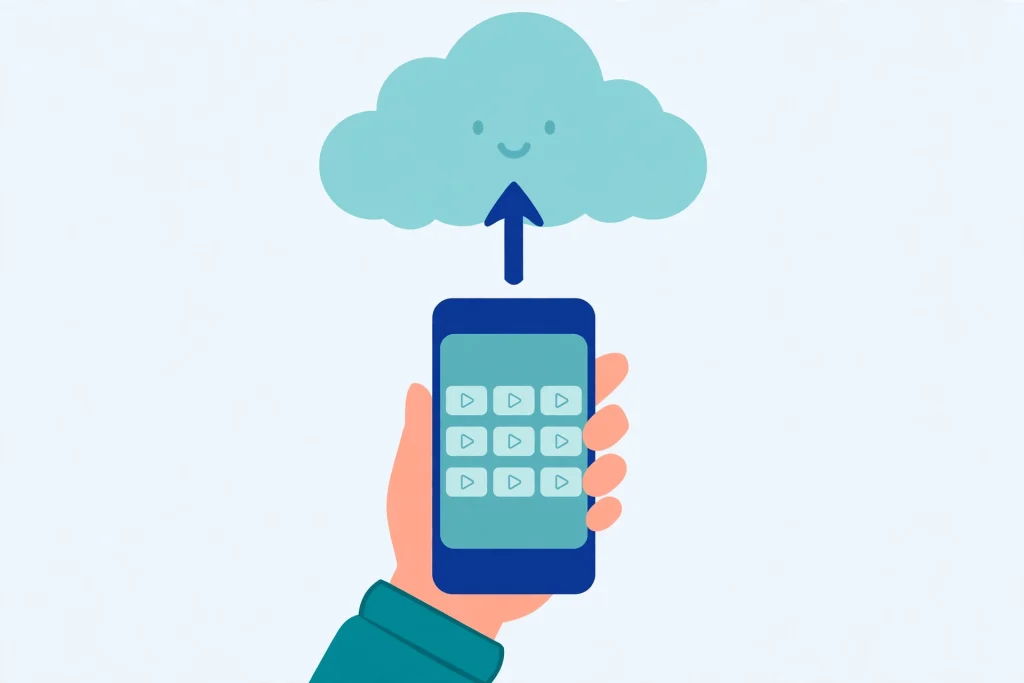
On your old phone:
- Open CapCut and tap Me (bottom right). Sign in if you have not already — TikTok, Facebook or Google all work.
- Go to your Projects list.
- Tap the three dots next to the project you want to move.
- Tap Upload to space.
- Wait for the upload to fully finish before closing the app — opening it on the other device too early can give you an older version.
On your new phone (or a second phone):
- Install CapCut and sign in with the same account.
- Tap your profile icon and open Cloud Projects (some versions call it My Space).
- Tap the project to download it, then open it and keep editing.
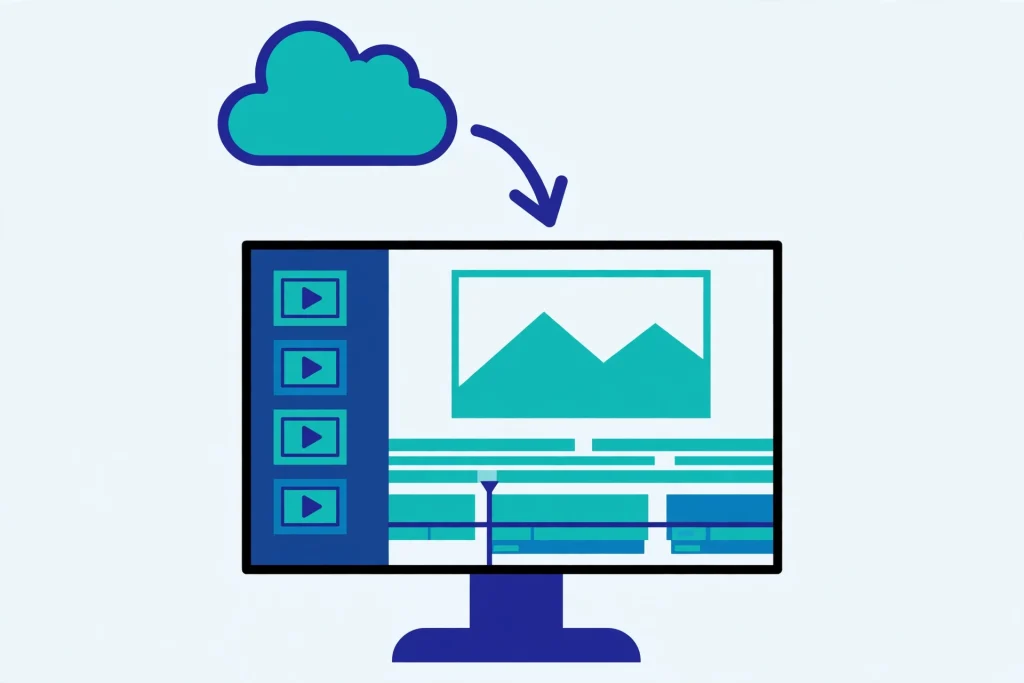
On a computer: Sign in to CapCut Desktop or CapCut Online with the same account. Your project is waiting in the Space section in the left sidebar. Open it to edit, or use the three-dot menu on the project and choose Download if you want a local copy. New to CapCut on PC? See our guide to CapCut for PC & Windows.
Good to know:
- Both devices need an internet connection and the same CapCut account. If sign-in fails, our CapCut login problem fixes will help.
- Free Space storage is limited, and the exact size depends on your account. Check yours under Space, then Settings, then Storage.
- If a project opens with missing clips, copy the original photos and videos over too and re-import them — the project remembers your edits, but it still needs the source files.
One more reason to keep a local copy: our does CapCut own your videos guide explains the license that applies to drafts synced to the cloud.
Method 2: Share a Project with Another Person (So They Can Edit)
Sometimes the “other device” belongs to someone else — a friend, a client, an editor. For that, use a shared team Space:
- Create or open a Space and invite the person to it.
- Open the project in the editor (CapCut Online or Desktop) and click the … icon at the top right.
- Choose Transfer editing permission, select the member, and tap Confirm.
Now they can edit the project. Only one person can edit at a time — everyone else gets view-only access until the editing permission is handed over.
Be careful: a “Share for review” link is not the same thing. Review links let people watch and comment, but they cannot edit your project.
Method 3: Manual Transfer on Android (No Cloud, No Account)
No account, no internet, or your Space is full? Android users can transfer CapCut projects by hand. This is a community-known workaround rather than an official feature, so follow the steps exactly.
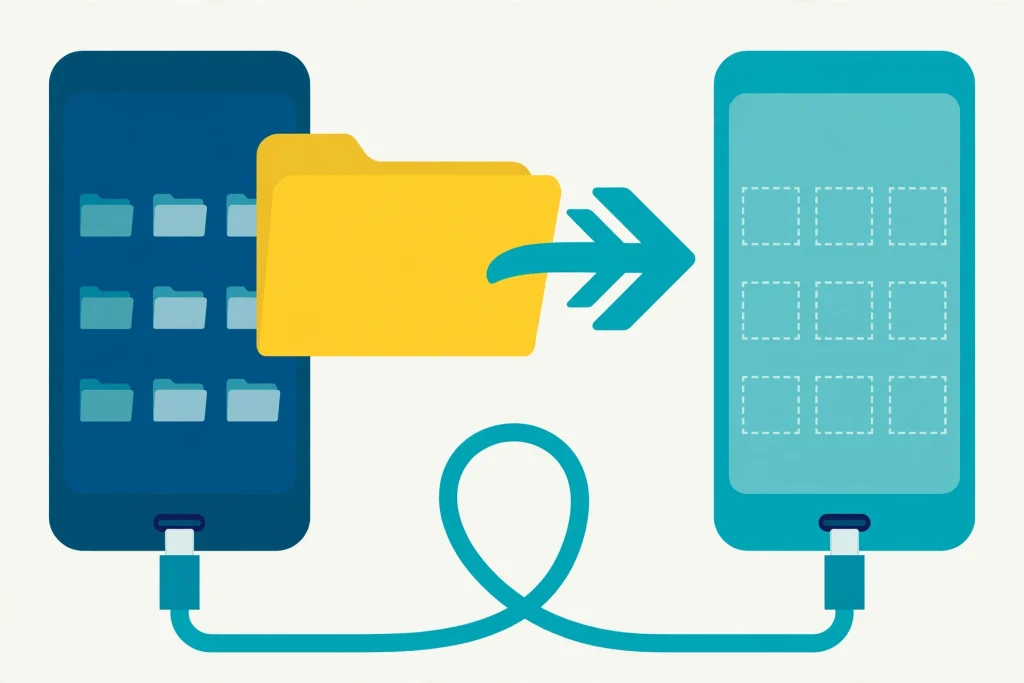
- On the old phone, open your file manager and go to Internal Storage > Android > data.
- Find the folder named com.lemon.lvoverseas — this is where CapCut keeps its data, including drafts. Copy the whole folder to a PC, SD card or USB drive.
- On the new phone, install CapCut and open it once, then close it. This makes the app create its own folders.
- Paste the copied folder back into Android > data on the new phone, merging when asked.
- Open CapCut. Your projects should be back in the projects list.
Read this before you try:
- Android 11 and newer block normal access to Android/data. Connect the phone to a PC, or use a file manager like X-plore that can open it.
- Copy your original videos and photos as well. A project without its media files opens with missing clips.
- Update CapCut on the new phone first. A project made in a newer version may not open in an older one.
- There is no “import” button for this method — the app simply picks the folders up when it starts.
Project Not Showing Up? Quick Fixes
Moving phones because the app keeps failing? First try our CapCut crashing while exporting fixes — a cache clear solves most cases without a new phone.
Phone filling up instead? Our CapCut taking too much storage guide shows how to clear the cache safely, without deleting a single draft.
- Project missing on the new device: Are you signed in with the same account on both? Did the upload finish? Check Cloud Projects / My Space again after a minute.
- Clips show as missing or black: The source media did not come across. Copy the original clips to the new device and re-import them into the project.
- Project will not open: Usually a version mismatch. Update CapCut on both devices — iPhone and Android included. Switching platforms? See CapCut for iOS.
- You uninstalled CapCut or reset the phone: Local drafts are deleted together with the app. Your only hope is a copy in Space (sign in and check Cloud Projects) or the in-app Trash, which keeps deleted projects for about 30 days.
Frequently Asked Questions
Do CapCut projects transfer automatically to a new phone?
No — you have to transfer CapCut projects yourself. Drafts are saved locally on the device where you created them; a project appears on another device only after you upload it to your CapCut Space, or move it manually on Android.
Can I transfer a CapCut project from iPhone to Android?
Yes. Upload the project to Space on the iPhone, then sign in with the same account on the Android phone and download it from Cloud Projects. Update both apps first so features and effects match.
Do I need a CapCut account to transfer projects?
For the cloud (Space) method, yes — you must be signed in with the same account on both devices. The manual Android folder method works without an account.
Does transferring a project also move my video clips?
The transfer moves the project with its edits. Keep the original clips until the project opens correctly on the new device — if a clip shows as missing, copy the original file over and re-import it.
I deleted CapCut and lost my drafts. Can I recover them?
Only if a copy exists somewhere: sign in and check Cloud Projects in Space, or look in the app’s Trash, where deleted projects stay for about 30 days. Drafts that only existed on the device are deleted together with the app.
Conclusion
Once you know how to transfer CapCut projects, switching devices stops being a problem. For most people, Upload to space is all it takes: upload on the old device, sign in with the same account on the new one, and pick up right where you left off. Android users without an account can move the com.lemon.lvoverseas folder by hand, and teams can hand over editing through a shared Space.
Build one habit: back up any project you care about before you reset your phone or uninstall the app. And if you need a fresh install on the new device, grab the latest version from our CapCut MOD APK homepage first, then bring your projects across.