
CapCut Crashing While Exporting? 10 Fixes (2026)

Your edit is finished, you tap Export… and CapCut closes. Or the progress bar freezes at 99% and dies. Few things in editing are more frustrating — especially when the same project played fine in the editor.
If you are dealing with CapCut crashing while exporting on your phone or PC, work through these fixes in order. Most people solve it in the first three.
Quick Answer: CapCut crashing while exporting is usually a load problem, not a broken project: rendering is the heaviest job the app ever does. Free up at least 2–5 GB of storage, close background apps, and restart. Still crashing? Clear the CapCut cache, then test a 1080p export at 30 fps.
If it crashes at the same percentage every time, one clip or effect at that point of the timeline is corrupt — find it and replace it. Reinstall only as a last resort, and back up your drafts first, because reinstalling deletes local projects.
Table of Contents
Why CapCut Crashes During Export (and Not While Editing)
Understanding CapCut crashing while exporting starts with one fact: previewing and exporting are different jobs. The preview shows you a low-effort version of your video. Exporting renders every frame at full quality — all your effects, transitions, color grading, captions and music, encoded at once.
That pushes your CPU, GPU, RAM and storage harder than anything else in the app. A phone or PC that “feels fine” while editing can still run out of memory, space or patience mid-render. That is why CapCut crashing while exporting is so common on long projects, 4K timelines and older devices.
The 10 Fixes, in the Order to Try Them
Work through these CapCut crashing while exporting fixes in order — each takes only a few minutes, and most crashes die in the first four.
1. Free Up Storage Space
The number one cause. CapCut needs room for the render file on top of your final video — keep at least 2–5 GB free, and more for 4K. On PC, it is your system drive that matters, even if the project sits on another disk. Delete old downloads and exports, then try again.
2. Close Everything Else and Restart
Exporting competes with every open app for RAM. Close browsers, games and social apps. If CapCut has been open for hours, restart the app — or the whole device — to clear stuck memory, then export as the first thing you do.
3. Test a Lighter Export
Export the same project at 1080p, 30 fps and the recommended bitrate (our best CapCut export settings guide has the exact values). If the lighter export succeeds, your project is fine — the device simply cannot carry the heavier render. Export at the lighter settings, or work through the fixes below and retry 4K afterwards.
4. Clear the CapCut Cache
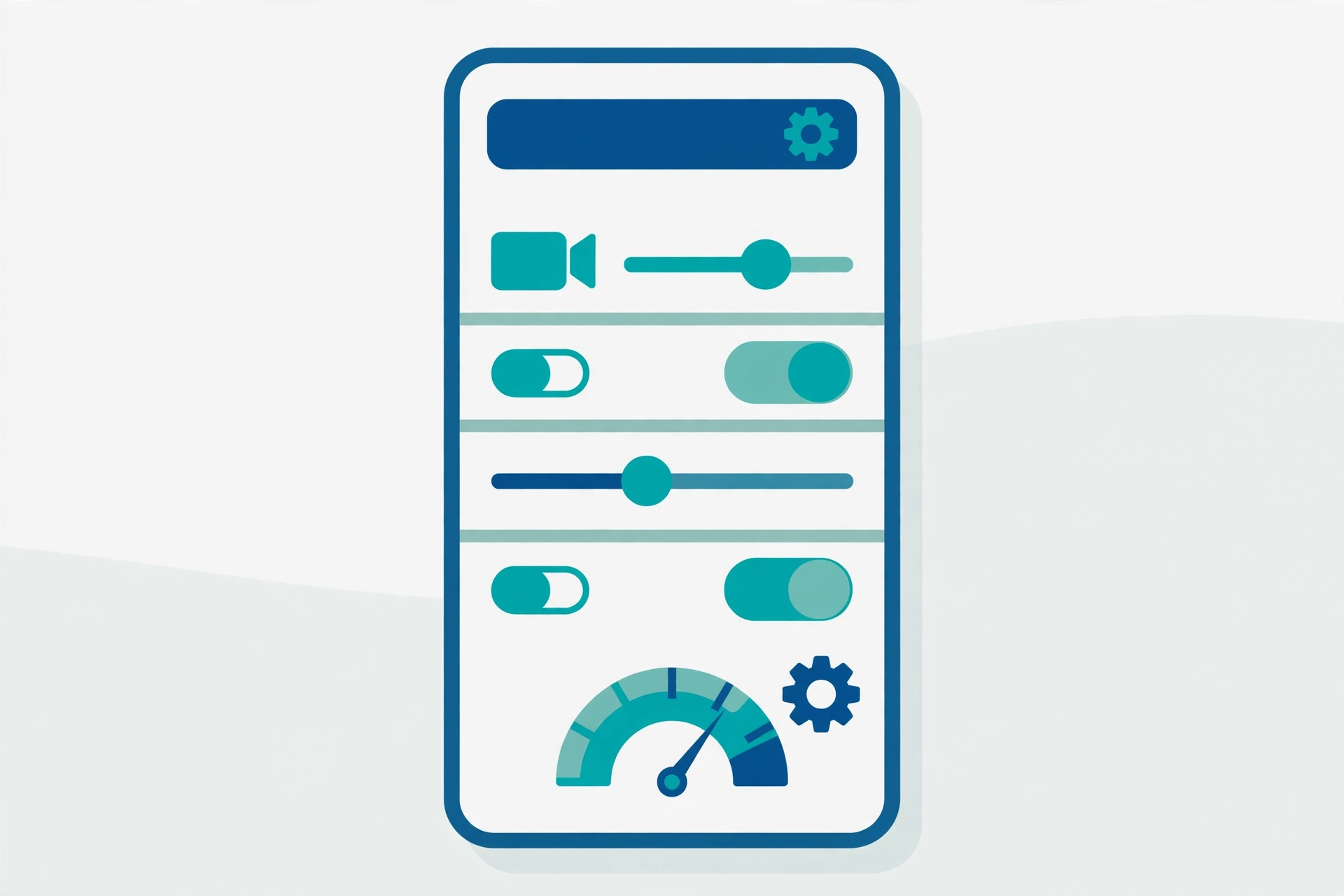
A bloated or corrupt cache causes random crashes — and it grows fast, sometimes to tens of gigabytes. Clearing it is safe: your projects, timelines and media stay untouched.
- Desktop: Menu → Settings → Project (or Draft) tab → click the trash icon next to Cache Size.
- Android: Phone Settings → Apps → CapCut → Storage → Clear Cache.
- iPhone: iOS has no per-app cache button; skip to the update and restart fixes, or see Fix 10.
A corrupt cache can also trigger the false “no internet connection” error — if you see that banner instead, use our CapCut no internet fix.
If storage is the root cause, the full cleanup is in our CapCut taking too much storage guide — cache, downloads and old exports, step by step.
5. Update CapCut (and Your System)
Export bugs are patched constantly. Update CapCut from the Play Store, App Store or the desktop app’s Settings → Check for Updates — and install pending Android, iOS or Windows updates too. If the crashes started right after an update, still do the cache clear in Fix 4; leftover cache from the old version is a classic cause.
6. Find the Problem Clip or Effect
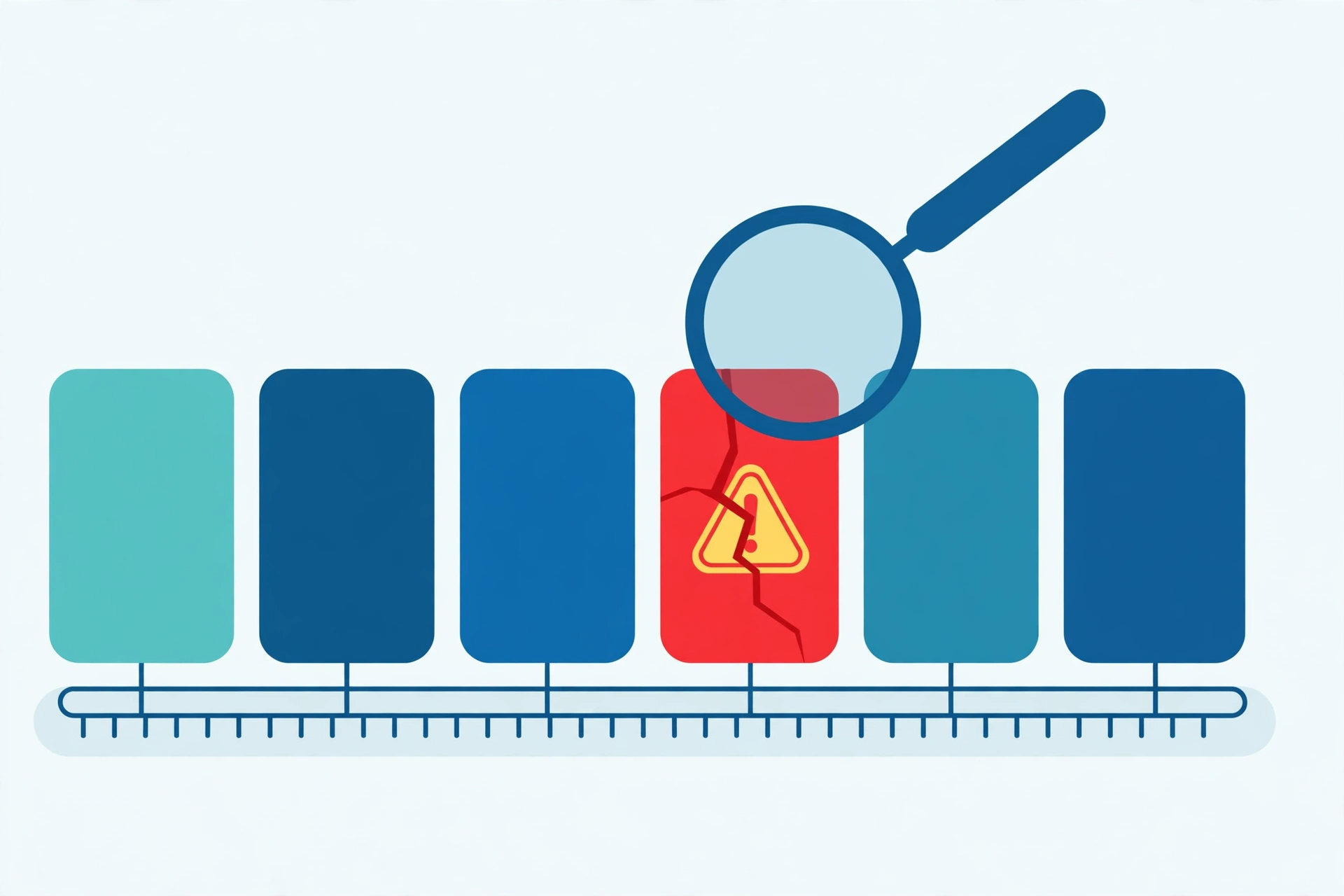
Does it crash at the same percentage every time? That point in the render is your culprit: a corrupt clip, a heavy effect, or a damaged transition at that moment of the timeline.
Export the project in two halves to narrow it down, then replace the clip (re-import it fresh) or swap the effect for a similar one. Screen recordings and clips from other phones are frequent offenders — see Fix 8.
7. Turn Hardware Acceleration Off (or On) — Desktop
On PC, the GPU can be the problem or the cure. In CapCut Desktop settings, toggle hardware acceleration, restart the app, and test again. For heavy 4K projects, also enable Proxy mode so the app renders with lighter copies of your clips. And update your graphics drivers (NVIDIA, AMD or Intel) — outdated drivers crash renders on otherwise strong PCs.
8. Fix Problem Source Clips (Variable Frame Rate)
Screen recordings, WhatsApp videos and downloads often use variable frame rate (VFR), which editors hate. If one clip always breaks the export, convert it first (any free converter, or re-record it), or delete and re-add it. Converting a VFR clip to a normal constant-frame-rate MP4 fixes more “impossible” export crashes than any setting.
9. Split the Export Into Parts
Need the video out today? Export the project in two or three chunks (set the export range or duplicate the project and trim), then join the exported parts in a fresh project and export that — joining finished clips is a light job that almost never crashes. A workaround, not a cure, but it saves deadlines.
10. Reinstall CapCut — Last Resort, Back Up First
If no fix stops CapCut crashing while exporting on your device, a clean reinstall clears deep corruption. Warning: uninstalling deletes your local drafts.
Before you reinstall, move any project you care about with the methods in our guide to transfer CapCut projects — upload them to your CapCut Space or copy them off the phone. Cloud projects return when you sign back in; local ones do not.
Frequently Asked Questions
Why does CapCut crash at 99% every time?
A crash at the same percentage almost always means one clip or effect at that point of the timeline is corrupt or too heavy. Export the project in halves to locate the spot, then replace that clip or swap the effect (Fix 6).
Does clearing the CapCut cache delete my projects?
No. The cache is temporary render files. Your projects, timelines and imported media are untouched when you clear the cache from CapCut’s settings or Android’s app storage. Only “Clear Data” on Android and uninstalling are destructive — avoid those unless you have backed up.
How much free space does CapCut need to export?
Keep at least 2–5 GB free for HD projects, and more for 4K — the app writes temporary render files that can be several times the size of the final video. On PC, the free space must be on your system drive.
CapCut started crashing while exporting after an update. Why?
Leftover cache and settings from the older version often clash with the new one. Clear the cache (Fix 4) and restart the app. If it persists, the update itself may have a bug — a lighter export (Fix 3) usually gets you through until the next patch.
Will reinstalling CapCut delete my drafts?
Yes — local drafts are deleted with the app. Projects uploaded to your CapCut Space are safe and come back when you sign in. Back up local projects first, then reinstall.
Conclusion
CapCut crashing while exporting feels like a disaster, but it is rarely your project that is broken — it is the render load, the storage, or one bad clip. Work the list in order: space, restart, lighter export, cache, update, then hunt the problem clip.
And before any reinstall, remember the one rule that protects all your work: drafts live on the device, so back them up first. If you need a fresh install on a new device afterwards, the latest version is on our CapCut MOD APK homepage.