Integrate CapCut with Instagram, TikTok, YouTube & Facebook
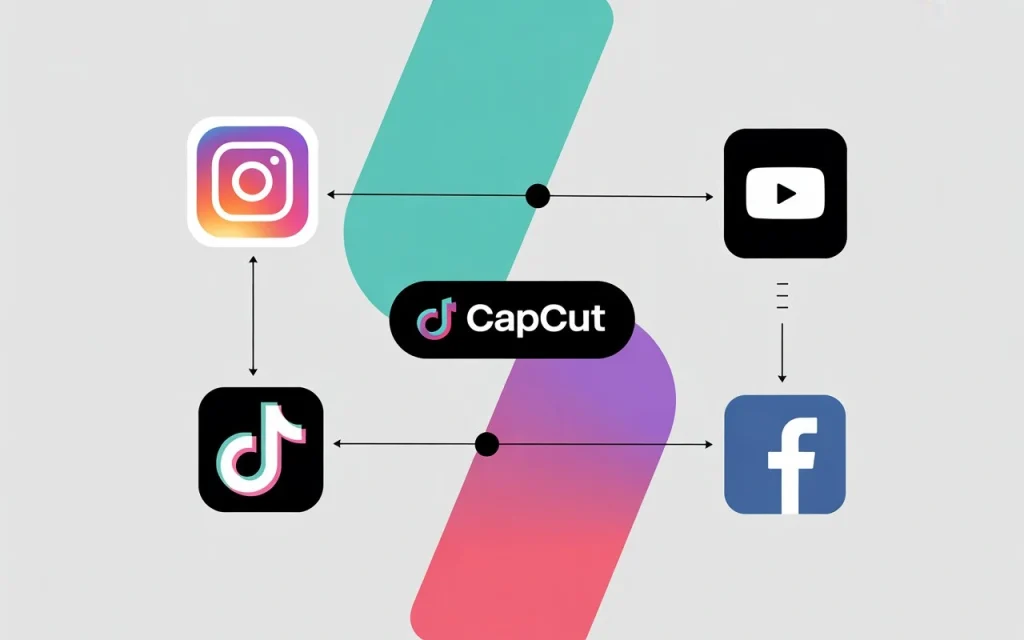
Struggling to manage content across multiple social platforms? CapCut makes it easy by integrating directly with Instagram, TikTok, YouTube, and Facebook. Instead of editing videos separately for each app, you can create once, export instantly, and share everywhere. This not only saves time but also helps you maintain consistency and grow your audience faster.
Introduction
Social media has transformed how people consume content. From short, entertaining TikTok clips to long-form YouTube tutorials and visually aesthetic Instagram Reels, video is now at the heart of digital communication. For creators, businesses, and influencers, high-quality video editing is no longer optional it’s essential.
That’s where CapCut comes in. CapCut is not just another editing app it’s a powerful yet free all-in-one video editor that integrates directly with the world’s leading social media platforms: Instagram, TikTok, YouTube, and Facebook.
In this article, we’ll dive deep into:
- What makes CapCut popular.
- How to integrate it with different platforms.
- Step-by-step guides for posting.
- Pro tips for optimizing videos on each platform.
- FAQs about CapCut and social sharing.
By the end, you’ll know exactly how to use CapCut as your primary tool for creating and distributing social media content that gets more views, engagement, and shares.
Understanding CapCut
CapCut is a free video editing app developed by ByteDance, the parent company of TikTok. Originally released as a TikTok editing companion, it quickly gained popularity due to its powerful editing features and social-friendly integrations.
Why CapCut Stands Out
- User-Friendly Editing
- Unlike complex software like Adobe Premiere Pro, CapCut is designed for mobile-first creators. Its drag-and-drop timeline, intuitive tools, and pre-made templates make editing fast and easy.
- Templates for Social Media
- CapCut offers thousands of templates that are already optimized for social media trends. You can pick a trending TikTok template, drop in your clips, and publish within minutes.
- AI-Powered Features
- Automatic captions, text-to-speech, background removal, and beat sync are all powered by AI. This reduces editing time and ensures professional results.
- High-Quality Export Options
- Videos can be exported in 720p, 1080p, 2K, and even 4K with frame rates up to 60fps.
- Direct Social Media Integration
- CapCut lets you share directly to TikTok, Instagram, YouTube, and Facebook without losing video quality.
For social media creators, this combination makes CapCut a game-changer.
Popular Social Apps for CapCut Integration
- Ideal for aesthetic videos, Reels, and Stories.
- Known for highly visual and trend-driven content.
- Requires attention to formats, safe zones, and vertical video optimization.
TikTok
- The trend capital of social media.
- Short, snappy, and music-focused videos dominate.
- Perfect synergy with CapCut since both are owned by ByteDance.
YouTube
- Home of both long-form and short-form video content.
- YouTube Shorts have exploded in popularity, competing directly with TikTok and Reels.
- Higher-quality production is expected, especially for monetized creators.
- Still a massive platform with billions of active users.
- Popular for Stories, Reels, and community-driven videos.
- Appeals to a wider demographic compared to TikTok and Instagram.
How to Integrate CapCut with Instagram?
Instagram thrives on visual creativity. Whether you’re making trendy Reels or polished Story ads, CapCut can give your content the edge.
Step-by-Step Guide to Integration
- Finish Editing in CapCut
- Trim, add transitions, music, and effects.
- Tap Export (top right)
- Choose the best resolution (1080p for most Instagram videos).
- Select “Share to Instagram”
- Choose between Reel, Story, or Feed Post.
- Make Final Adjustments in Instagram
- Add stickers, text, music, or tags directly in Instagram.
- Publish with Hashtags and Captions
- Use trending hashtags like #Reels, #CapCut, or niche-specific tags.
Tips for Optimizing Content for Instagram
- Use Vertical 9:16 Format for Reels and Stories.
- Keep content under 30 seconds for best engagement.
- Use CapCut’s auto-captions since many users watch with sound off.
- Stay on-trend by using Instagram’s music library.
- Add aesthetic filters and branded overlays to make your videos recognizable.
How to Integrate CapCut with TikTok?
TikTok is where CapCut shines brightest. Because both apps are linked, integration is nearly frictionless.
Step-by-Step Guide to Integration
- Edit in CapCut using TikTok-optimized templates.
- Tap Export → Select Share to TikTok.
- TikTok opens automatically with your video ready.
- Add TikTok-native music, text, and hashtags.
- Post immediately or save as a draft.
TikTok-Specific Tips for Editing and Sharing
- Use CapCut’s trending templates to ride viral trends.
- Keep videos short: 7–15 seconds is the sweet spot.
- Sync edits with beats using CapCut’s auto beat sync tool.
- Add text overlays at key moments for engagement.
- Always use hashtags like #CapCut #fyp #trending.
How to Integrate CapCut with YouTube?
YouTube allows for both Shorts and long-form content, giving CapCut creators more flexibility.
Step-by-Step Guide to Integration
- Edit your video in CapCut.
- Tap Export.
- For Shorts → Vertical (9:16).
- For long videos → Horizontal (16:9).
- Select Share to YouTube.
- Add title, tags, and description.
- Upload with the right visibility settings.
Tips for Creating YouTube-Friendly Videos
- For Shorts: Keep them under 60 seconds, with strong hooks.
- For long videos: Export in 1080p or 4K.
- Add captions for accessibility.
- Use CapCut’s text and graphics for YouTube intros/outros.
- Create thumbnails using still frames exported from CapCut.
How to Integrate CapCut with Facebook?
Facebook remains an underrated video platform, especially for community and regional engagement.
Step-by-Step Guide to Integration
- Edit in CapCut.
- Tap Export.
- Select Share to Facebook.
- Choose Feed, Story, or Reels.
- Add captions and location tags.
- Post directly or schedule.
Best Practices for Sharing Videos on Facebook
- Use square (1:1) or vertical (4:5, 9:16) formats for mobile users.
- Make the first 3 seconds highly engaging.
- Add captions since many watch on mute.
- Cross-share Instagram Reels to Facebook for dual exposure.
- Post during peak hours (e.g., evenings, weekends).
Conclusion
CapCut has become more than just an editing app—it’s a social media powerhouse. Its deep integration with Instagram, TikTok, YouTube, and Facebook makes it the perfect tool for content creators, influencers, and brands.
By following the step-by-step integration guides and platform-specific optimization tips, you can:
- Save time in publishing.
- Keep video quality high.
- Ride viral trends more effectively.
- Grow your audience across multiple platforms.
Whether you’re posting short viral clips on TikTok, stylish Reels on Instagram, or professional content on YouTube and Facebook, CapCut ensures your videos look polished and perform well.