How to Fix CapCut Login Error in 2026 – Step-by-Step Solutions
Imagine opening CapCut to edit your next video, only to be stuck on a login error screen. Frustrating, right? Many creators. Whether you are a beginner video editor or a content creator preparing your next viral reel, being locked out of CapCut can delay your work.
The good news is that most CapCut login issues are easy to fix once you understand the real cause. In this guide, we’ll explain why CapCut login problems happen and share simple solutions that will help you get back to editing quickly.
Common CapCut Login Problems Users Face
Before fixing the issue, it is important to understand the most common login problems users experience.
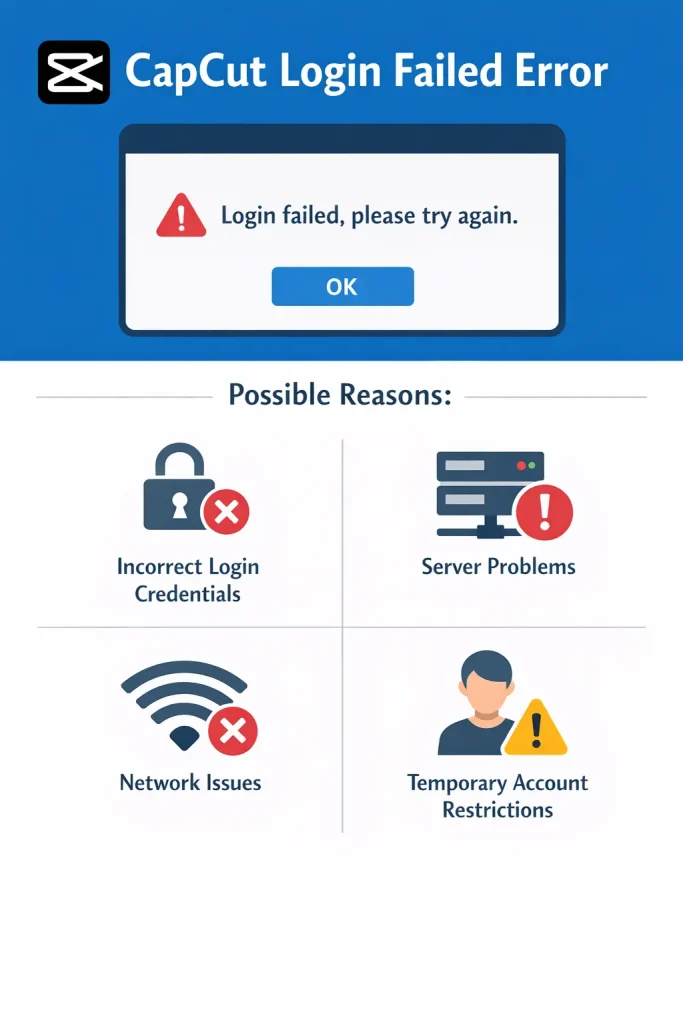
1. CapCut Login Failed Error
This is one of the most common issues users encounter: a message such as “Login failed, please try again.”
Possible reasons include:
- Incorrect login credentials
- Server problems
- Network issues
- Temporary account restrictions
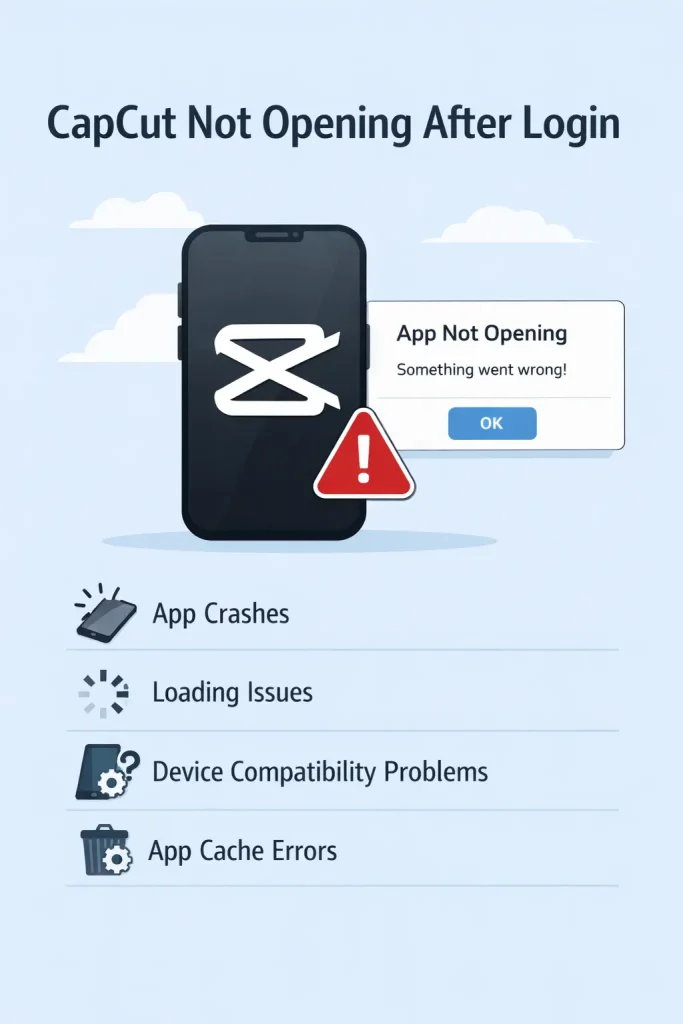
2. CapCut Not Opening After Login
Sometimes the login process works, but the app freezes or crashes right after signing in.
This can happen because of:
- App bugs
- Corrupted cache files
- Outdated app versions
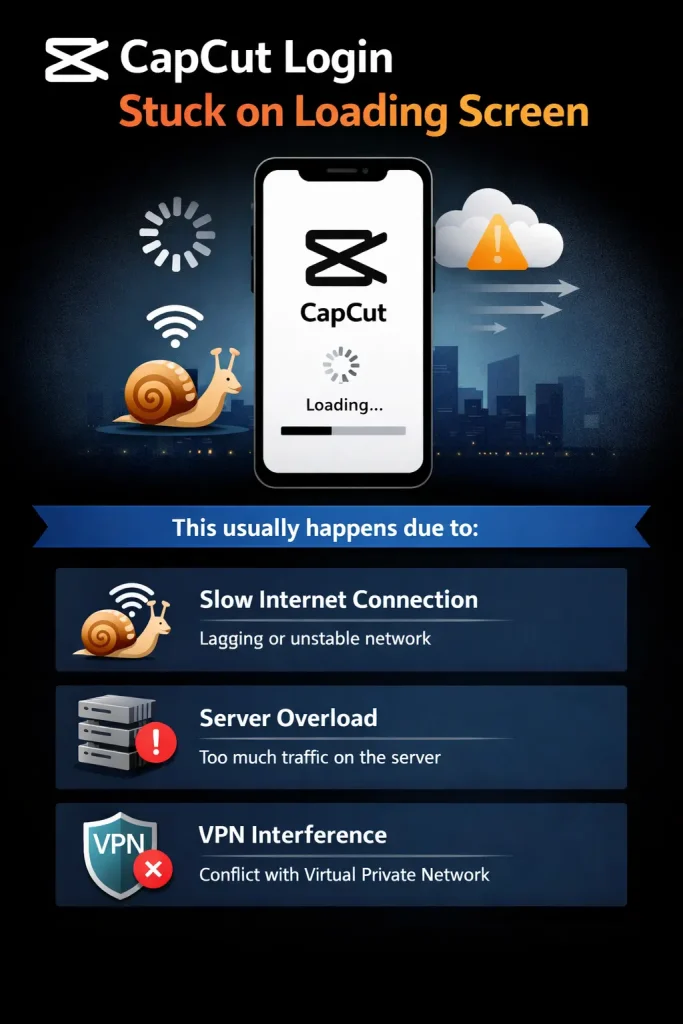
3. CapCut Login Stuck on Loading Screen
Another common problem is when CapCut keeps loading but never logs you in.
Usually, this happens due to:
- Slow internet connection
- Server overload
- VPN interference
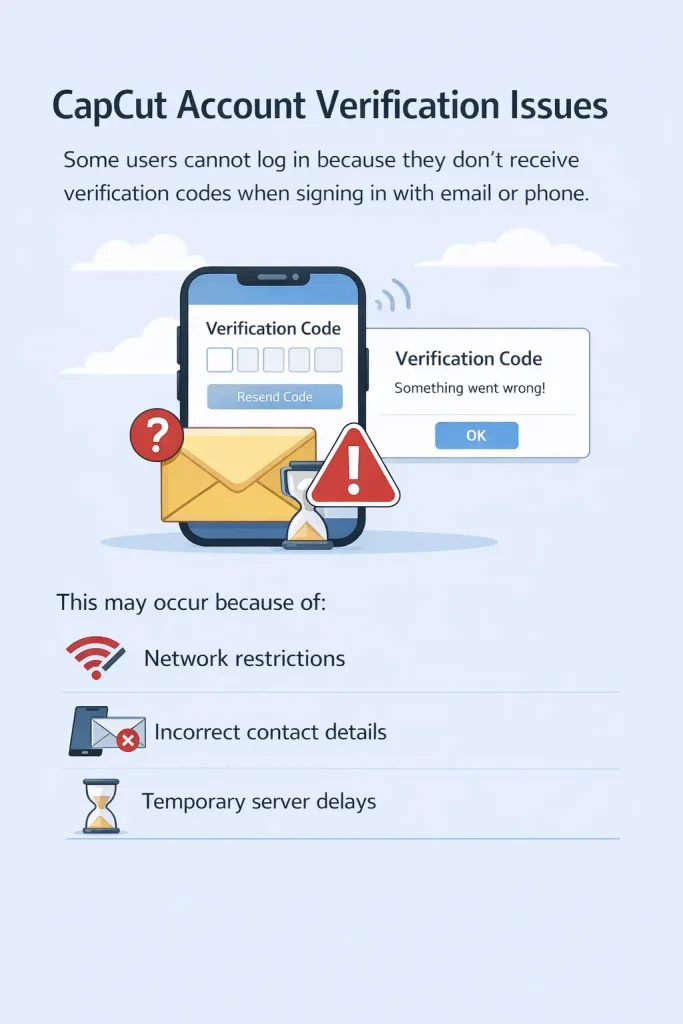
4. CapCut Account Verification Issues
Some users cannot log in because they don’t receive verification codes when signing in with email or phone.
This may occur because of:
- Network restrictions
- Incorrect contact details
- Temporary server delays
Why does the CapCut login problem happen?
Understanding the cause makes it easier to fix the issue.
1. Server Downtime
Sometimes, CapCut servers may temporarily experience downtime due to maintenance or heavy traffic. During this time, users may not be able to log in.
2. Internet Connection Issues
A weak or unstable internet connection can interrupt the login process.
3. Outdated CapCut App
Using an old version of CapCut may cause compatibility issues that prevent a successful login.
4. Cache and App Data Problems
Corrupted cache files stored in your device can cause login errors.
5. Account Login Method Conflict
If you previously logged in with Google or TikTok and later try another method, the app may fail to recognize your account.
How to Fix the CapCut Login Problem?
Here are proven solutions that usually fix the issue within minutes.
1. Check Your Internet Connection
First, make sure your internet connection is stable.
You can try:
- Switching between Wi-Fi and mobile data
- Restarting your router
- Turning airplane mode on and off
2. Restart the CapCut App
Closing and reopening the app can fix temporary glitches.
Steps:
- Close CapCut completely
- Remove it from recent apps
- Open it again and try logging in
3. Update the CapCut App
Always use the latest version of CapCut because updates fix bugs and login issues.
Check updates from:
After updating, try logging in again.
4. Clear CapCut Cache
Clearing the cache can remove corrupted data, causing login problems.
Steps for Android:
- Go to Settings
- Open Apps
- Select CapCut
- Tap Storage
- Click Clear Cache
5. Disable VPN
If you are using a VPN, CapCut may block the login request.
Try:
- Turning off VPN
- Logging in again with a normal internet connection
6. Reinstall the CapCut App
If nothing works, reinstalling the app can solve most technical issues.
Steps:
- Uninstall CapCut
- Restart your device
- Install CapCut again
- Log in with your account
7. Use a Different Login Method
Try logging in with another method, such as:
- TikTok
Sometimes one method works while another fails.
How to Prevent CapCut Login Issues?
To avoid login problems in the future, follow these tips.
1. Keep the App Updated
Always install new updates because they fix bugs and security issues.
2. Use a Stable Internet Connection
Avoid logging in with weak or unstable networks.
3. Avoid Using Multiple Accounts
Switching between multiple accounts frequently can cause login conflicts.
4. Save Your Login Details
Remembering your login method can prevent authentication errors later.
CapCut Login Problem on PC
Some users experience login issues when using CapCut Desktop.
Common fixes include:
- Restarting the software
- Updating the desktop version
- Logging in through a browser first
- Checking firewall settings
If the problem persists, reinstalling the desktop version usually fixes the issue.
Tips for Content Creators Using CapCut
Many creators rely on CapCut for editing TikTok, YouTube Shorts, and Instagram Reels. To avoid workflow interruptions:
- Save projects locally whenever possible
- Export completed videos immediately
- Sync projects with your account regularly
This ensures that even if login problems occur, your content remains safe.
|FAQs|
1. Why is CapCut saying login expired?
This usually happens when your session token expires, or the app logs you out automatically. Logging in again or clearing the app cache usually fixes the issue.
2. Why can’t I log in to CapCut with TikTok?
Sometimes TikTok login fails due to account permissions, server issues, or outdated app versions. Updating both apps usually solves the problem.
3. How do I fix the CapCut network error when logging in?
Try switching internet networks, disabling VPN, restarting the device, or reinstalling the app to fix network-related login errors.
4. Why does CapCut keep logging me out?
This issue usually occurs because of multiple device logins, corrupted cache files, or outdated app versions.
5. Can I use CapCut without logging in?
Yes, basic editing features can be used without login, but cloud storage, templates, and syncing require a CapCut account.
6. How do I fix the CapCut verification code not sending?
Check spam folders, verify your phone/email, ensure network stability, and wait a few minutes before requesting another verification code.
7. Why is CapCut not working in my region?
In some countries, CapCut services may have temporary restrictions. Using a stable network or updating the app may help resolve the issue. Also, you can use the best vpn for CapCut to use without any interruption.
Conclusion
The CapCut login problem can be frustrating, especially when you need to edit videos quickly. However, most login issues are caused by simple problems like unstable internet connections, outdated app versions, or temporary server downtime. By following the troubleshooting methods explained in this guide—such as updating the app, clearing cache, disabling VPN, or reinstalling CapCut—you can solve the issue in just a few minutes.
CapCut remains one of the most powerful and beginner-friendly video editing apps available today. Once your login issue is resolved, you can return to creating engaging content for social media without interruptions.