CapCut PC vs Mobile – Full Comparison Guide for Creators
Video editing has never been more accessible, and CapCut stands out as one of the most popular free tools available today on both mobile and PC. But if you’re deciding between the two, the question is simple: Which one should you use? This article compares CapCut PC vs mobile in a clear, practical way — no fluff, just real differences that matter to everyday creators.
Understanding the Core Difference
At its core, the difference between CapCut PC and mobile comes down to:
- Speed vs Precision
- Convenience vs Control
- Short-form vs Long-form workflow
Both versions are developed by ByteDance, the company behind TikTok, which explains why CapCut integrates so smoothly with social video trends. But while they share the same brand and similar features, the editing experience feels very different.
📱 CapCut Mobile: Built for Speed and Trends
CapCut originally became popular on mobile because it made short-form editing incredibly easy. If your goal is TikTok, Instagram Reels, or YouTube Shorts, the mobile version feels natural.

Why Mobile Works So Well for Short Videos?
- Template-First Editing
Mobile has strong template integration. You can select trending templates and apply them quickly without manually building effects. - Touch-Based Editing
Dragging clips with your finger feels intuitive. For quick trimming, adding captions, or applying filters, it’s fast. - Record and Edit Instantly
Shoot a clip → edit → export → upload. All on one device. - AI Tools Optimized for Social
Auto captions, background removal, text-to-speech, and filters are optimized for vertical video.
Where Mobile Falls Short?
While mobile is convenient, it has limits:
- A smaller screen makes precise cuts harder
- Multi-layer timelines become cluttered
- Managing longer projects feels cramped
- Less comfortable for complex audio mixing
If you’re editing a 15–30 second Reel, mobile is perfect. If you’re editing a 20-minute YouTube video, it becomes frustrating.
💻 CapCut PC: Designed for Control and Depth
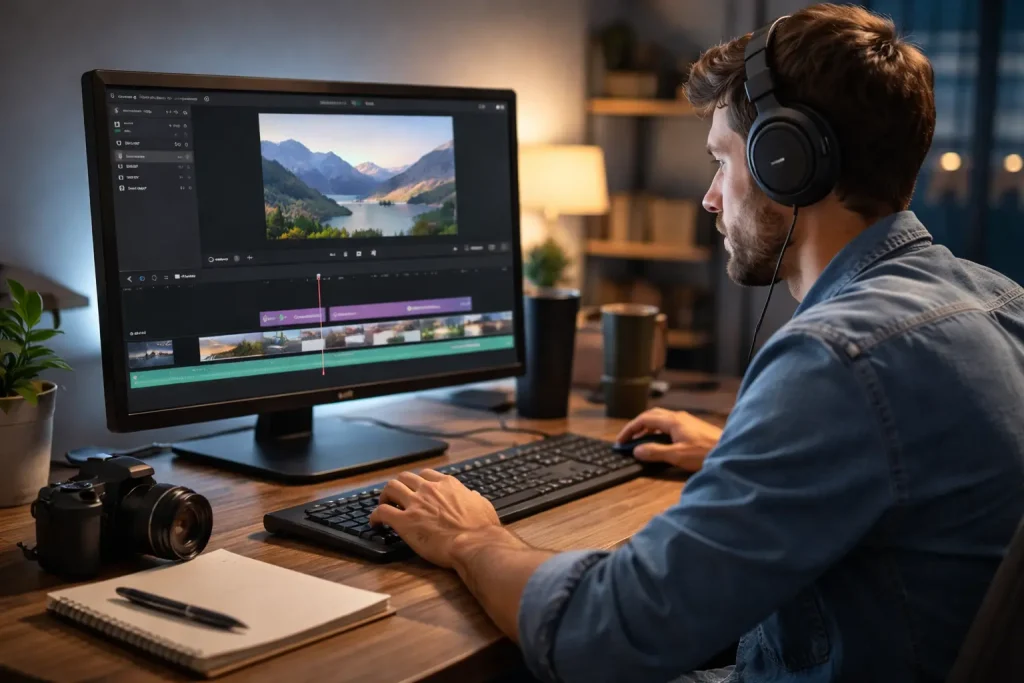
CapCut PC feels closer to traditional editing software. The larger screen and mouse-and-keyboard workflow immediately changes how you edit.
Why PC Is Better for Detailed Projects?
- Expanded Timeline
You can see multiple tracks clearly — video layers, overlays, music, effects. - Keyboard Shortcuts
Faster trimming, splitting, undoing, and precise adjustments. - Better Audio Management
Easier to adjust volume levels, sync audio, and layer voice-overs. - Handles Large Files Better
Desktop hardware manages higher-resolution footage more smoothly. - More Comfortable for Long Sessions
Editing for two hours on a laptop is easier than on a phone.
Limitations of CapCut PC
It’s not perfect either:
- Some trending mobile templates may not appear
- Slight learning curve compared to mobile
- Requires a capable PC to avoid lag
If you have an older laptop, performance may vary.
Feature Comparison: CapCut PC vs Mobile
Here’s a realistic breakdown:
| Feature | Mobile | PC |
|---|---|---|
| Ease of Use | Very Beginner-Friendly | Moderate |
| Advanced Timeline Control | Limited | Strong |
| Multi-Layer Editing | Basic | Advanced |
| Audio Editing | Basic | Better Control |
| Template Access | Strong | Moderate |
| Best For | Shorts/Reels | YouTube/Long Videos |
This table alone doesn’t decide the winner. Your content type does.
Workflow Scenarios: Which Version Fits You?
1. 🎥 If You’re a TikTok Creator
Go with mobile.
The integration with trends, templates, and vertical editing is smoother. You can create, edit, and upload in minutes.
2. 🎬 If You Run a YouTube Channel
Choose PC.
Longer timelines, better audio sync, and detailed cuts are easier on a desktop.
3. 📊 If You Edit Client Projects
Definitely PC.
Precision matters when you’re delivering paid work. The larger workspace reduces mistakes.
4. 📱 If You Edit Only Occasionally
Mobile is enough.
No need to sit at a desk if you’re editing quick personal clips.
Can You Use Both?
Yes — and many creators do.
A common workflow:
- Rough cut on mobile
- Export draft
- Final polish on PC
Or:
- Collect clips on phone
- Transfer to PC
- Edit full video
CapCut cloud sync allows project movement between devices, though some manual adjustments may be needed. Using both versions gives flexibility instead of limitation.
Who Should Upgrade to PC?
Upgrading to CapCut PC makes sense if your editing needs are growing beyond quick mobile projects. If you’re creating longer YouTube videos, handling client work, recording podcasts, or working with multiple video and audio layers, the desktop version offers better control and a more comfortable workspace.
It’s also a smart move if you find mobile editing limiting due to screen size or precision issues. Creators who want cleaner cuts, improved audio management, and smoother performance with larger files will benefit most from switching to PC. In short, if your content is becoming more detailed or professional, moving to desktop editing is a natural next step.
Performance & System Considerations
Mobile performance depends on:
- RAM
- Storage space
- Device age
Older phones may lag during effects-heavy edits.
PC performance depends on:
- Processor (CPU)
- RAM (8GB minimum recommended)
- Graphics capability
For smoother editing on PC, mid-range hardware is usually enough for 1080p projects.
User Experience Differences
The biggest difference isn’t just features — it’s how editing feels. Mobile editing feels:
- Fast
- Reactive
- Trend-focused
PC editing feels:
- Structured
- Professional
- Controlled
Neither is objectively superior. They serve different purposes.
Long-Term Growth Perspective
If you’re planning to grow as a serious video creator, learning desktop editing tools helps in the long term. Even though CapCut PC is simpler than professional software, it builds skills like:
- Timeline management
- Multi-track editing
- Audio balancing
- Structured project organization
Mobile editing builds speed. PC editing builds structure. Ideally, you should understand both.
Export Quality Differences
Both versions support high-resolution export (including 1080p and 4K, depending on device capability).
However:
- PC exports tend to be more stable for longer videos
- Mobile exports may compress more depending on device storage and performance
For casual social media uploads, both are fine.
For detailed YouTube content, PC offers more consistency.
Frequently Asked Questions
1. Is CapCut PC better than mobile?
CapCut PC offers more precise timeline control, better multi-track editing, and a larger workspace. It’s better for long or complex projects. Mobile is faster and more convenient for short-form content.
2. Does CapCut PC have more features than mobile?
CapCut PC provides a stronger timeline and audio control. However, mobile often gets trending templates and social-focused tools first.
3. Is export quality different between PC and mobile?
Both support high-quality export, but PC handles large files more consistently, especially for longer videos.
4. Is CapCut 100% free on PC?
Yes — CapCut is completely free to download and use on PC. You can access all core editing features, export without watermarks, and create videos without paying. However, some optional assets (such as premium templates or special effects packs) may require in-app purchases or subscriptions if offered in the future. The base editor itself does not require payment to install or use for standard editing tasks.
Final Verdict: CapCut PC vs Mobile
When it comes to CapCut PC vs mobile, the right choice depends on how and what you edit. If your focus is quick, trend-based content like TikTok videos or Instagram Reels, the mobile version is fast, convenient, and perfectly optimized for short-form creation.
However, if you’re working on longer YouTube videos, client projects, or need more precise control over layers, audio, and timelines, CapCut on PC offers a more structured and comfortable editing experience. Neither version is universally better — mobile excels in speed and simplicity, while PC provides depth and precision. Ideally, using both gives you the most flexibility as your content grows.