CapCut Online Editor vs App: Honest Review Updated-(2026)
CapCut Online Editor vs App Choosing between CapCut Online Editor (web-based) and CapCut App (mobile & desktop) can feel confusing. Both promise fast editing, trendy tools, and social-friendly exports. But the differences are meaningful—especially when you need performance, privacy, or pro features.
Based on direct hands-on tests, product documentation, and user feedback, here’s an in-depth comparison to help you decide which version of CapCut fits your editing style and goals.
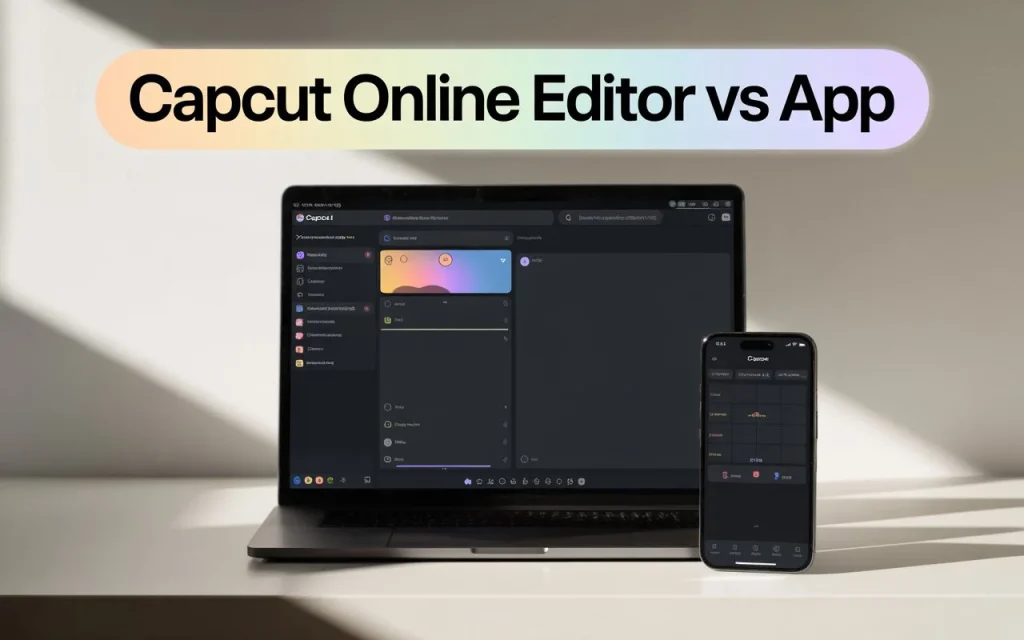
CapCut Online Editor vs App: Which One Is Better?
If you’ve ever tried to edit videos for TikTok, YouTube, or Reels, chances are you’ve used CapCut. It’s fast, creative, and—most importantly—free.
But here’s the twist: CapCut now gives you two editing experiences — the Online Editor (web) and the Mobile App.
At first glance, they look the same. Same templates, same fonts, same transitions. But after a few serious edits, you start to realize… they feel completely different.
So, which one is actually better? Let’s break it down — from a creator’s real-world perspective.
🎬 1. The Online Editor: Built for Focus and Control
The CapCut Online Editor is a web-based version you can use on a laptop or desktop. Think of it as CapCut with breathing room.
You’re not stuck pinching and zooming on a small screen. You’ve got a full timeline, larger previews, and keyboard shortcuts that actually make sense.
Why creators love it:
- Bigger screen, more control. You can manage multiple clips, color-grade properly, and see your layers clearly.
- Cloud storage. Everything you upload stays accessible from any device — ideal if you edit on multiple computers.
- Faster rendering. On a decent system, exports are smoother and higher quality (up to 4K).
- Better for serious projects. Great for YouTube videos, ads, or long-form edits.
Where it falls short:
- It needs a stable internet connection — lag can kill your flow.
- No offline editing. If your Wi-Fi drops, so does your project.
- Some mobile-exclusive effects or templates aren’t yet supported online.
In short, the online editor gives you professional flexibility but demands a stable setup.
If you prefer editing offline or on a dedicated system, you can also try the CapCut for PC version, which offers a smoother experience with similar features as the web editor.
📱 2. The App: Quick, Smart, and Made for Mobile Creators
Now, let’s talk about the CapCut App — the version that blew up on TikTok.
It’s fast, intuitive, and surprisingly powerful for a phone tool. You can record, trim, sync, and post without ever touching a computer.
Why it’s a favorite:
- Speed. From shoot to upload, you can edit and post in minutes.
- Templates. You can drop your clip into trending templates and ride viral waves instantly.
- AI tools. Auto captions, body effects, and background removers save hours.
- Offline access. You can edit anywhere, even on a flight or café without Wi-Fi.
The downsides:
- Limited precision on smaller screens. Fine-tuning audio or color can be tricky.
- Complex projects with multiple layers can feel cramped.
- Export quality depends on phone performance.
If you’re a social-first creator, the app feels like magic. But if you’re building cinematic projects, you’ll hit its limits fast.
⚡ 3. Real-World Comparison: Speed, Flexibility & Workflow
| Feature | CapCut Online Editor | CapCut App |
|---|---|---|
| Device | Laptop / Desktop | Phone / Tablet |
| Best for | Long-form & professional editing | Quick social videos |
| Ease of Use | Moderate learning curve | Beginner-friendly |
| Performance | Depends on internet & hardware | Depends on phone specs |
| AI Tools | Expanding, but limited templates | Advanced AI & effects |
| Collaboration | Cloud-based sharing | Local only |
| Offline Editing | ❌ Not available | ✅ Yes |
| Export Quality | Up to 4K, smoother | High, but device-dependent |
In simple terms:
👉 The Online Editor is like a studio.
👉 The App is like a pocket camera crew.
Each has its stage to shine.
Key Comparison Areas
Let’s dive into some key areas of difference, so you know what to expect.
1. Ease of use & interface
- On the mobile app, the interface is made for touch: drag clips, pinch zoom, apply templates quickly. It’s highly accessible for beginners.
- On the browser/desktop version, you get a larger screen, more space for timeline editing and potentially better visibility of multiple tracks or layers (depending on how CapCut implements it). Some users say the PC/browser version gives more control when you move many clips.
- If speed and simplicity are your priority (e.g., editing a 60-second Reels clip), mobile might win. If you want finer control, desktop/editor might feel more comfortable.
2. Features & performance
- The online editor boasts features like text-to-speech, effects, filters, cloud import/export, templates.
- The app version also supports many of these features but is constrained by mobile hardware (memory, CPU) and screen real-estate. For example, handling large, complex multi-layer edits may be slower on mobile.
- In forums, some users say the PC/browser version “makes it easier to edit multiple clips at the same time, moving clips on main track/overlays is easier.”
- On the other hand, mobile wins for immediacy and editing on the go — you don’t need a full workstation.
3. Platform & workflow flexibility
- The online editor allows you to work on a laptop or desktop, likely connecting to cloud resources, possibly collaborating. As noted on CapCut’s site, online editors give “video editing in real time”, “cloud storage”, and “use across multiple platforms”.
- The mobile app is perfect for capturing footage and editing immediately. But if you need to switch between devices or share project files across devices, the browser version may give you more flexibility.
- If your workflow includes switching from mobile capture → desktop editing, → export to YouTube/Instagram, then the online version complements that better.
4. Exporting & output quality
- Both versions support exporting in high resolution (depending on your device and plan). The online editor states you can export like a “pro”.
- However, on mobile, you might hit hardware limits (battery, storage) or interface constraints. On a desktop or browser, you typically have more headroom.
- If you’re producing content for high-end output (e.g., YouTube 4K, longer form), the desktop/browser version might be more reliable.
5. When each is better
Go with the Mobile App if:
- You’re editing short clips on the go (e.g., TikTok, Instagram).
- You captured footage on your phone and want to edit it immediately.
- You need a fast, intuitive interface without complex multi-layer workflows.
- You’re comfortable working on a smaller screen and don’t need intensive editing features.
Choose the Online Editor (Browser/Desktop) if:
- You’re working on a laptop/desktop, possibly with multiple clips/tracks.
- You need more screen space, more control, or plan to collaborate.
- You want cloud-based editing, access from multiple devices, and more complex export needs.
- You’re editing for YouTube, or longer-form content, rather than just quick social clips.
Final thoughts: Which is better overall?
Here’s the truth: it depends on your workflow.
- If you’re a social creator posting short videos, stick with the app. It’s faster, easier, and always in your pocket.
- If you’re a brand, YouTuber, or editor, the online version gives you the space and control you need for serious storytelling.
- If you’re both, use them together — film and rough-cut on mobile, then refine online.
That combo workflow is what many pro creators are doing now.
If you’re still comparing CapCut with more advanced software, check out our detailed CapCut vs Final Cut Pro comparison guide to see how CapCut stacks up against premium desktop tools.
Tips to get the most out of your choice
- Whichever you choose, make sure you’re using the latest version — CapCut updates both its mobile and web/editor versions regularly.
- If you start editing on mobile and then move to desktop/browser, check whether your project files transfer seamlessly (if supported).
- Be mindful of device performance: on mobile, long edits may drain battery or hit memory limits; on browser, ensure your system specs are sufficient and your internet connection is stable (for cloud-editing).
- Always preview your export on the intended platform (e.g., TikTok, Instagram, YouTube) to ensure the aspect ratio, resolution and format look correct.
- Keep an eye on storage: even online editors rely on uploads/downloads; on mobile you’ll need enough free space to handle media and exporting.
Bottom line
If I were to summarise: For quick social-media edits, go with the mobile app. For more serious, multi-clip editing, editing on a laptop/desktop via the online editor is the stronger choice. Use the version that matches your device, workflow, and output goals — and you’ll get the most from CapCut.
💬 What’s your favorite way to edit — Online or App?
Drop your thoughts in the comments below and tell us which version gives you better control and creativity!