
Why CapCut Says “Too Many People Are Using This Feature Now”

CapCut is one of the most popular video editing apps for creators, offering powerful tools such as AI effects, auto-captions, templates, and background removal. However, many users occasionally encounter a frustrating message: “Too many people are using this feature now.” When this happens, the feature stops working temporarily, preventing you from completing your edit.
This error typically occurs when using certain cloud-based tools within CapCut. Because these tools rely on remote servers rather than your device, they can become temporarily overloaded when many people try to use them at the same time.
In this guide, you’ll learn what causes this error, how to fix it, and how to avoid it in the future. We’ll also cover related questions users frequently search for when CapCut features stop working.
Why CapCut Shows “Too Many People Are Using This Feature Now”
The message “Too many people are using this feature now” indicates that the CapCut servers handling that specific feature are currently overloaded. This often happens with features that rely on cloud processing rather than local device performance.
When a large number of users access the same tool simultaneously, CapCut temporarily limits access to prevent server crashes. Instead of allowing everyone to use the feature at once, the system queues requests or blocks access temporarily.
This error doesn’t usually mean something is wrong with your phone or computer. It simply means the platform is experiencing heavy traffic for that feature.
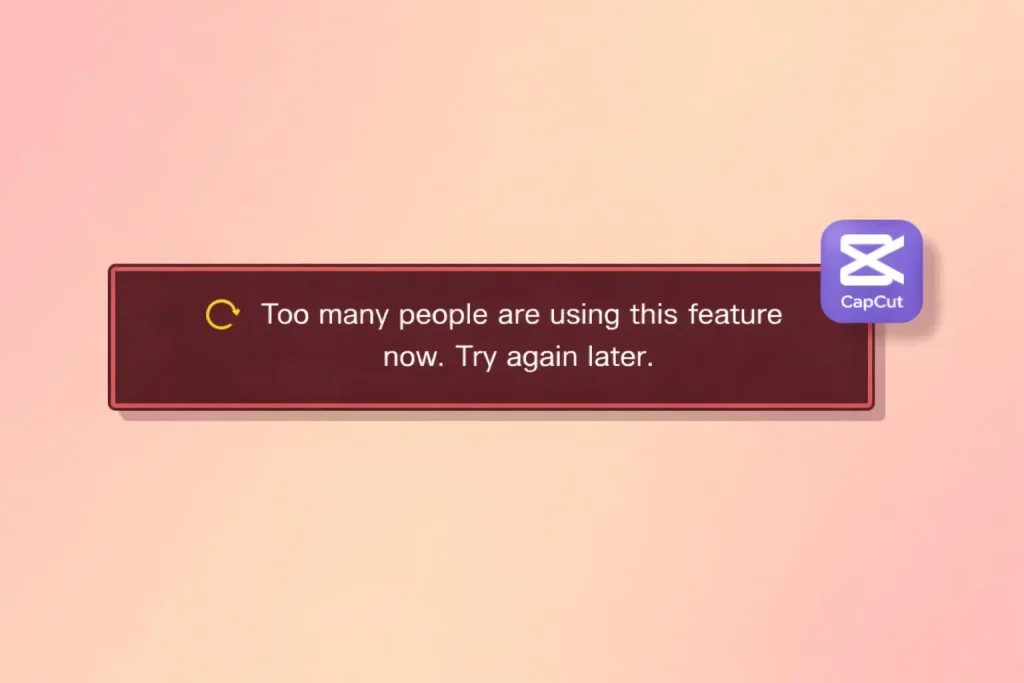
Common reasons include:
1. Server Overload
CapCut has millions of users worldwide. When too many users access features like AI background removal, auto captions, or AI effects, the servers can become overloaded.
2. Regional Restrictions
Some CapCut features are limited in certain countries. If the server is busy in your region, you may see this error.
3. Internet Connection Issues
A weak or unstable internet connection may prevent CapCut from connecting to its servers properly.
4. App Cache Problems
A corrupted or overloaded app cache can cause temporary errors.
5. Temporary Feature Limits
Sometimes CapCut limits the number of users who can access premium AI tools at the same time.
10 Ways to Fix “Too Many People Are Using This Feature Now” in CapCut
This error usually appears when CapCut servers are handling too many requests at the same time, especially for AI tools and templates. It’s a temporary issue in most cases. Try the methods below to quickly fix the problem and continue editing.
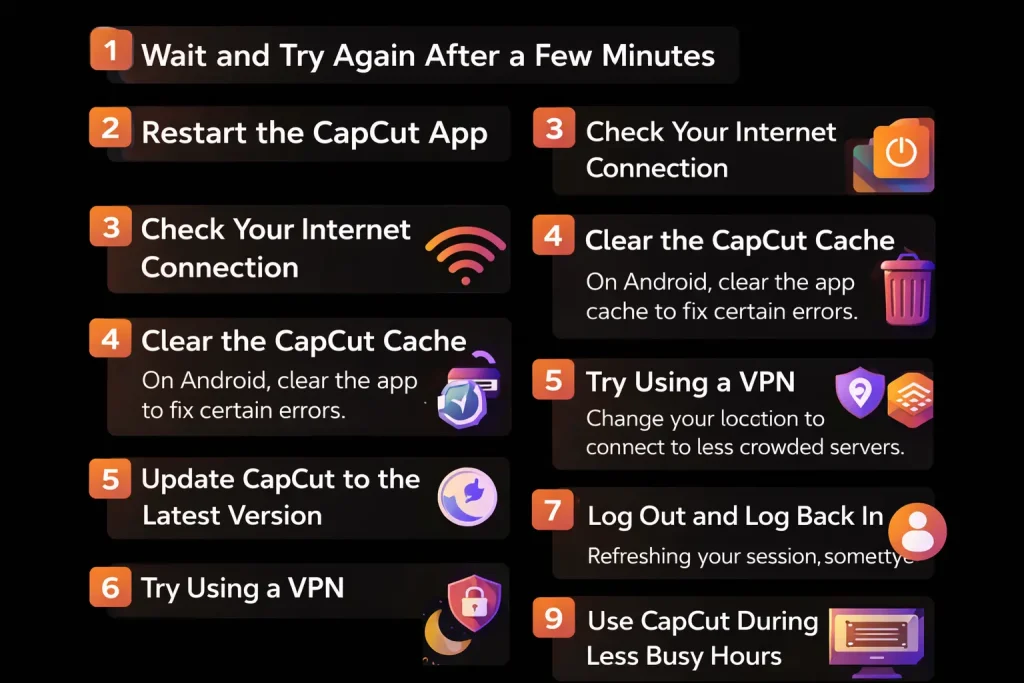
1. Wait and Try Again After a Few Minutes
This error usually appears when CapCut servers are handling too many requests at the same time. Many AI tools and templates rely on cloud processing, so when demand is high, the system temporarily limits access.
In most cases, waiting a few minutes and trying again solves the problem once the server load drops.
2. Restart the CapCut App
Sometimes the issue is caused by a temporary app glitch rather than server overload.
Close CapCut completely and remove it from your recent apps list. Then reopen the app and try using the feature again. Restarting refreshes the connection between your device and CapCut’s servers.
3. Check Your Internet Connection
CapCut’s AI tools and templates require a stable internet connection. If your connection is slow or unstable, the app may fail to communicate with the server.
You can try:
- Switching from Wi-Fi to mobile data
- Restarting your router
- Moving closer to the Wi-Fi signal
A stable connection helps the feature load correctly.
4. Clear the CapCut Cache
Temporary files stored by the app can sometimes cause unexpected errors. Clearing the cache removes these files without deleting your projects.
Steps for Android:
- Open Settings
- Go to Apps
- Select CapCut
- Tap Storage
- Choose Clear Cache
After clearing the cache, open the app again and test the feature.
5. Update CapCut to the Latest Version
Using an outdated version of the app can cause compatibility problems with newer features.
Open the Google Play Store or Apple App Store and check if an update is available. Installing the latest version ensures you have the newest bug fixes and server compatibility improvements.
6. Try Using a VPN
In some cases, the error happens because servers in your region are overloaded. Changing your location using a VPN may connect you to a less crowded server. Steps include installing a trusted VPN, connecting to another region, and reopening CapCut before trying the feature again. This method does not always work, but it can help in certain regions.
7. Log Out and Log Back Into Your Account
Account sessions can sometimes become unstable, especially after updates or long usage sessions. Logging out and signing back in refreshes your session and reconnects your account with CapCut servers.
8. Reinstall the CapCut App
If the problem continues, reinstalling the app may fix corrupted files or installation errors.
To do this:
- Uninstall CapCut from your device
- Restart your phone
- Install the app again from the official app store
- Log back into your account
This gives you a clean installation of the app.
9. Use CapCut During Less Busy Hours
CapCut servers are often busiest during evening hours when many creators are editing videos. Trying the feature during early morning or late night may improve your chances of accessing it without errors.
10. Try the CapCut Web Editor
If the mobile app keeps showing the error, you can try the CapCut web editor on a computer. The web version sometimes connects to different servers and may allow you to use the feature without interruption.
Which CapCut Features Usually Trigger This Error?
This issue most commonly appears when using advanced CapCut tools powered by online servers. Examples include:
- AI video effects
- AI background removal
- Auto captions and translation
- CapCut templates
- AI avatars or voice tools
- Cloud-based video processing
Because these tools require remote processing, they can occasionally reach capacity limits. Basic editing tools like trimming clips, adding music, or adjusting color usually work normally even when the server is busy.
How Long Does This Error Usually Last?
In most cases, the error disappears within a few minutes. Server traffic changes constantly, so retrying later usually works.
If the problem continues for a long time, it may indicate a temporary issue with CapCut’s servers. When that happens, the only solution is waiting until the service returns to normal.
Why CapCut Uses Cloud Processing?
Many CapCut features rely on cloud processing because they require powerful computing resources.
For example, AI background removal analyzes each frame of your video. Running this process locally on every phone would require extremely powerful hardware.
Instead, CapCut processes these tasks on its servers and sends the result back to your device. This allows users with ordinary smartphones to access advanced editing tools.
However, this system also means server demand can occasionally become high.
Related Problems Users Often Experience
When users see the “Too many people are using this feature now” message in CapCut, they often encounter other similar issues as well. These problems usually relate to server traffic, internet connection, or app performance.
1. CapCut Templates Not Loading
Sometimes CapCut templates fail to load or appear blank. This usually happens when the template servers are busy or when the internet connection is unstable. Waiting a few minutes or refreshing the app often fixes the issue.
2. CapCut AI Features Not Working
AI tools such as auto captions, background removal, or AI effects may stop working temporarily. Since these features rely on cloud processing, they can become unavailable when many users try to access them at the same time.
3. CapCut Export Errors
Another issue users report is export failures or videos not rendering properly. This can happen when the device has low storage, the project is too complex, or the app version is outdated.
Understanding these related problems helps users identify whether the issue is temporary or something that needs troubleshooting.
Tips to Avoid This Error
While you cannot completely prevent server overload, a few simple habits can reduce the chances of seeing this error.
1. Keep CapCut Updated
Updating the app ensures you have the latest bug fixes and performance improvements. Older versions may struggle to connect properly with CapCut’s servers.
2. Use a Stable Internet Connection
Cloud-based features require a reliable internet connection. A weak or unstable network may cause features to fail or trigger error messages.
3. Try Using Features During Off-Peak Hours
Some CapCut tools become very popular during peak hours, especially when a feature or template goes viral. Using the app during less busy times may reduce the chance of server congestion.
4. Save Your Projects Frequently
Saving your project regularly protects your work in case a feature suddenly stops working. This simple habit prevents progress loss during editing sessions.
Frequently Asked Questions
1. Why does CapCut say too many people are using this feature now?
This message appears when a cloud-based feature reaches its usage limit because too many users are trying to access it simultaneously.
2. Can I fix the error permanently?
No permanent fix exists because the problem usually comes from server traffic. However, updating the app and using a stable internet connection helps reduce issues.
3. Do CapCut AI features require the internet?
Yes. Most AI tools rely on online servers to process video data, which is why they sometimes become temporarily unavailable.
4. Is the error caused by my phone?
Usually not. The problem typically comes from server demand rather than device performance.
Final Thoughts
The “too many people are using this feature now” error in CapCut can be frustrating, especially when you are in the middle of editing a video. However, it is usually a temporary issue caused by high demand for cloud-based tools.
In most cases, waiting a few minutes, checking your internet connection, updating the app, or restarting CapCut will solve the problem. Since the error typically comes from server overload rather than device issues, it rarely indicates a serious problem.
CapCut continues to grow as one of the most widely used video editing tools for creators. As its user base expands, occasional server congestion may occur—but with the troubleshooting steps above, you can quickly return to editing your videos.