CapCut Permissions: Fix Export & Storage Problems (Android & iOS)

You finish editing your video, tap Export, and suddenly CapCut shows “Export Failed” or “Can’t save video.” No clear reason, no fix, just frustration. Most users think CapCut is broken, but the real problem is usually due to incorrect permission settings. In this guide, you’ll learn exactly which CapCut permissions are required to export videos and how to fix storage errors on both Android and iPhone.
Overview
Many users love CapCut because it is free, easy to use, and powerful. But one problem almost every user faces at least once is export failure, storage permission error, or video not saving to the gallery.
Most of the time, this issue is not a bug.
It happens because wrong permissions are allowed or denied.
In this blog, you will learn:
- Which permissions does CapCut really need for exporting
- Difference between Android and iPhone permissions
- How to fix storage and export errors step by step
- Which permissions should you never allow
Everything is explained in simple words, so even beginners can understand easily.
Why does CapCut ask for Permissions?
CapCut is a video editing app, so it needs access to some phone features to work properly.
Permissions allow the app to:
- Read your videos and photos
- Save edited videos
- Record voice-over
- Use the camera (if needed)
If you deny an important permission, CapCut cannot complete tasks like exporting videos.
✅ Permissions Required for Exporting Videos (Most Important Part)
If your only goal is editing and exporting videos, you only need one main permission.
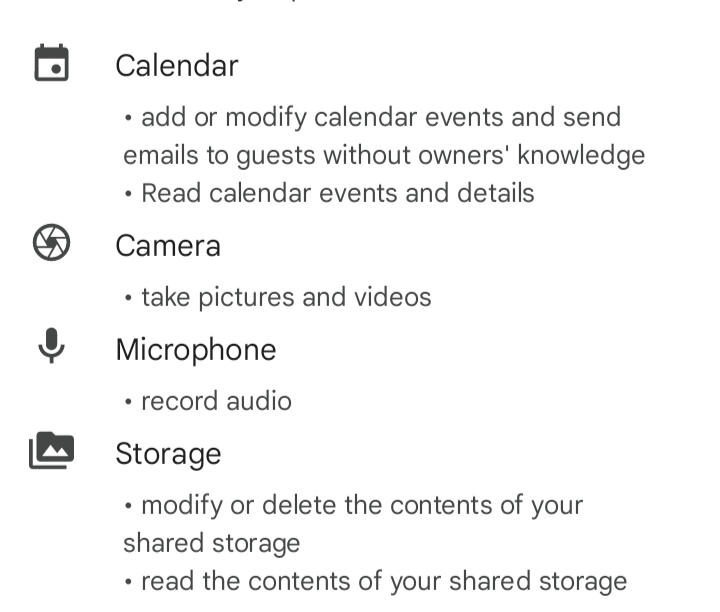
1. 📁 Storage / Photos & Media (Required)
Why is this permission important?
- To import videos and photos
- To save/export the final video
- To store project files
If this permission is denied:
- Export will fail
- Video will not appear in the gallery
- “Can’t save video” error will show
👉 This permission must be allowed for CapCut to work.
2. 🎤 Microphone (Optional but Useful)
Why does CapCut ask for a microphone?
- To record a voice-over
- To add narration or voice effects
Do you need it for exporting?
❌ No
But if your project includes voice recording, allow it only while using the app.
3. 📷 Camera (Optional)
Why does CapCut ask for a camera?
- To record videos directly inside the app
If you only edit existing videos:
❌ You can safely deny this permission.
4. 🗓️ Calendar (Not Required ❌)
CapCut does not need calendar access for video editing or exporting.
👉 Always deny calendar permission.
5. 🔒 Best Permission Settings for Export Only (Recommended)
For safe and smooth exporting:
- Storage / Photos & Media → ✅ Allow
- Microphone → ✅ Allow only while using (optional)
- Camera → ❌ Deny (unless recording inside app)
- Calendar → ❌ Deny
Android vs iPhone: CapCut Permissions Explained
Many users get confused because Android and iPhone handle permissions differently.
1. 📱 CapCut Permissions on Android
On Android, CapCut usually asks for:
1. Files & Media Access
This includes:
- Photos
- Videos
- Audio files
Important tip:
On newer Android versions, select:
Allow access to photos and videos
If you select “Don’t allow”, export will fail.
2. Storage Location Issue (Android 11+)
Some Android phones restrict access to internal storage.
Fix:
- Go to Settings → Apps → CapCut → Permissions
- Allow Photos & Videos
- Allow Music & Audio (if shown)
2. CapCut Permissions on iPhone (iOS)
On iPhone, CapCut permissions are simpler.
1. Photos Permission (Most Important)
You will see options like:
- None
- Selected Photos
- All Photos
👉 Choose All Photos
If you select “Selected Photos”, CapCut may:
- Fail to export
- Do not save videos to the gallery
2. Microphone Permission (Optional)
Only needed for voice-over.
3. Background App Refresh (Helpful)
Enable this for smooth exporting:
- Settings → CapCut → Background App Refresh → On
If you are using CapCut on an iPhone and want a complete setup guide, you can also check our detailed guide on CapCut for iOS, which explains app installation, permissions, and performance tips.
❌ Permissions You Should NEVER Allow
CapCut does not need:
- Contacts
- Location
- Phone
- SMS
- Call logs
If your phone asks for these, deny immediately. “If you’re wondering whether CapCut is safe overall, read our complete CapCut safety and privacy analysis.”
🔧 How to Fix CapCut Export or Storage Permission Errors
Here are working solutions used by most users.
Fix 1: Check Storage Permission
Android:
- Settings → Apps → CapCut → Permissions
- Allow Photos, Videos, Storage
iPhone:
- Settings → CapCut → Photos → All Photos
Fix 2: Restart CapCut and Phone
After changing permissions:
- Close CapCut completely
- Restart your phone
- Open CapCut and export again
This simple step fixes many issues.
Fix 3: Clear Cache (Android Only)
- Settings → Apps → CapCut
- Storage → Clear Cache
❌ Do NOT clear data unless necessary
Fix 4: Check Free Storage Space
If your phone storage is almost full:
- Export will fail
- Video won’t save
👉 Keep at least 1–2 GB free space.
Sometimes export issues are not only related to permissions but also connectivity problems, so you may want to read this guide on how to fix the CapCut no internet problem.
Fix 5: Update CapCut App
Old versions may have bugs.
- Update CapCut from Play Store or App Store
- Try exporting again
Common CapCut Permission Errors and Meaning
“Can’t save video.”
→ Storage permission denied
“Export failed.”
→ Storage access blocked or low storage
“Video not showing in gallery.”
→ Photos permission not set to full access
Final Words
Most CapCut export and storage problems happen because of wrong permission settings, not because the app is broken. If you remember only one thing:
👉 Always allow storage/photos permission
Once permissions are set correctly, CapCut works smoothly on both Android and iPhone.
📌 Beginner-Friendly CapCut Permission Checklist (Printable Section)
✅ Before Editing
- Storage / Photos → Allowed
- Enough free storage → At least 1–2 GB
✅ Before Exporting
- Photos access set to All Photos (iPhone)
- Media access allowed (Android)
- App updated to the latest version
❌ Never Allow
- Calendar
- Contacts
- Location
- SMS or Phone access
🔧 Troubleshooting Checklist (Quick Fix Box)
If CapCut export fails, check these one by one:
☐ Storage permission allowed
☐ Phone storage not full
☐ CapCut app updated
☐ App restarted after permission change
☐ Cache cleared (Android only)
☐ Background app refresh enabled (iPhone)